Dashboard
Introduction to Dashboards
Dashboards can be used to display multiple pieces of information in a variety of formats. A Dashboard is comprised of one or more Dashboard Panels which can be widely customised. In most cases, Dashboard Panels will be utilised to show the results of Queries, which you can read more about in the Query Editor section.
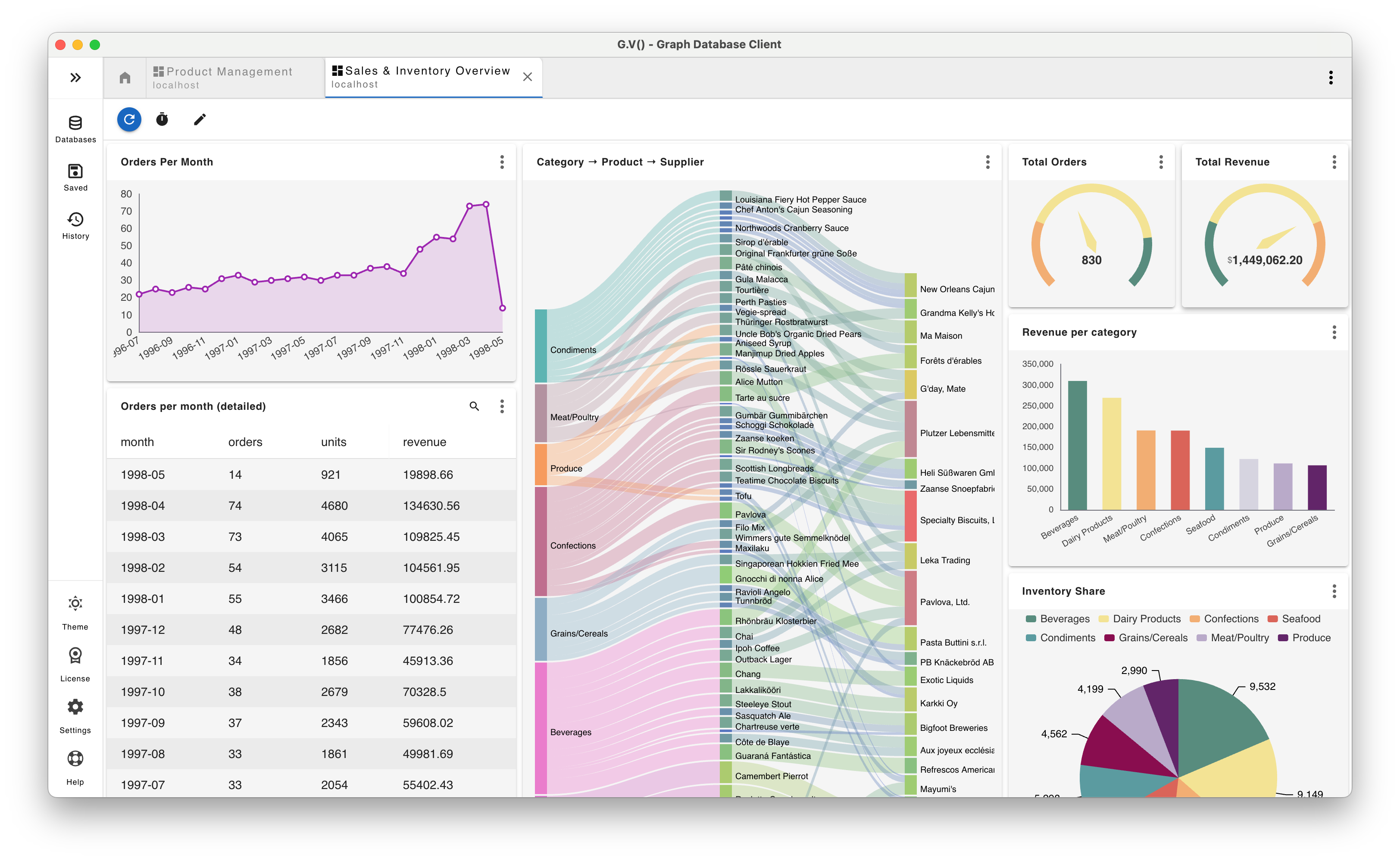
Below is an example of a dashboard in gdotv with various panels set up.
How to Create a Dashboard
To create a Dashboard, select a connection from the side menu and click on ' New Dashboard'. A new Dashboard will be created with the following screen:
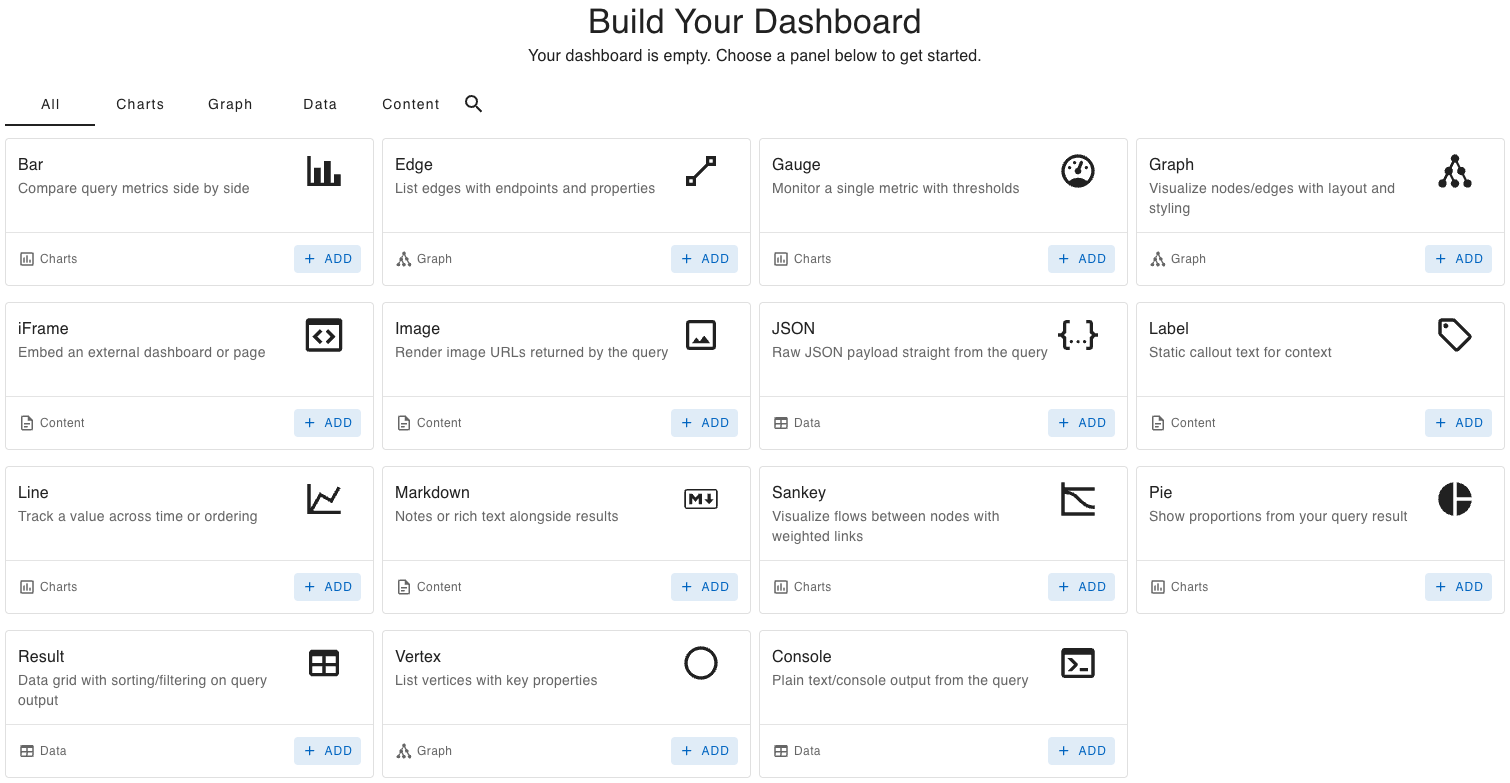
Select which type of Panel you'd like to add first, and an edit window will open for that Panel type.
Dashboard Panels
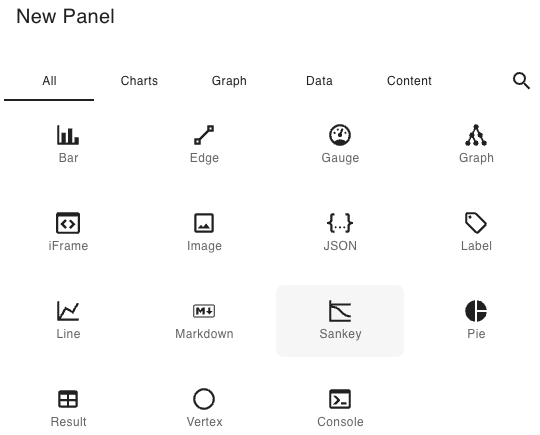
There is currently a range of 15 Panel types to choose from. These are organised into 4 groups: Charts, Graph, Data and Content. To add a Panel, click on 'New Panel' in the toolbar.
Most Panel types require a query that will retrieve the data to be turned into a chart or graph of some kind. The type of query or input required will vary depending on the Panel type, and is stated below the Panel title. A dropdown of Example Queries is available in the Query Editor toolbar for each Panel type.
To view the expanded query editor in fullscreen mode, click on 'Open in Query Editor' . You can also use this window to run your query and view the results as you would from a normal query tab. Here there is a 'Return to Dashboard Editor' button in the top right.
To resize a Panel, click and drag the resize icon in the bottom right of the Panel .
To move a Panel, simply click and drag while in Edit Mode.
Dashboard Panel Menu
At the top right of each Panel is a menu with the following options:
- View Serialized Result / Return To Chart : Toggles between displaying the query's serialized JSON result and the Panel's actual display.
- View / Exit Fullscreen / : Toggles fullscreen mode.
- Edit (Edit Mode only): Opens the panel's edit window.
- Refresh : Refreshes the results of the panel.
- Delete Panel (Edit Mode only): Deletes the panel.
Dashboard Toolbar
When a Dashboard is in Edit Mode, the following controls are available from the toolbar:

- New Panel : Brings up the New Panel dialog to create a new panel of your chosen type.
- New Tab : Opens a new tab so you can have multiple dashboards under the same instance.
- Save / Save As : Save replaces the current dashboard with your changes. Save As saves a new dashboard instead.
- Discard Unsaved Changes : Resets the dashboard to its last saved state.
- Optimize Grid Layout : Organises panels to use space efficiently without resizing them. You can also pick fixed layouts (full‑width rows, 2‑column, 3‑column, etc.) for a grid-style view.
- Lock Dashboard : Toggles the dashboard out of Edit Mode into View Mode, and prevents changes being made.
- Delete Dashboard : Removes the dashboard. You can restore it with “Discard Unsaved Changes” unless it has already been saved.
When the Dashboard is locked in View Mode (i.e. not in Edit Mode), the following controls are available from the toolbar:

- Refresh Dashboard : Re-runs all of the queries to provide up-to-date info.
- Auto-Refresh Dashboard : Automatically refreshes every panel at a chosen interval (Off, 15s, 30s, 1m, 5m, 15m).
- Edit Dashboard : Toggles the dashboard out of View Mode into Edit Mode.
In View Mode you can properly interact with all the panels - for example, hovering over a graph will show detailed information, and links on iFrame panels will be clickable.
Dashboard Panel Types
Panels are arranged into four different sections: Charts, Graph, Data and Content.
Bar (Chart)
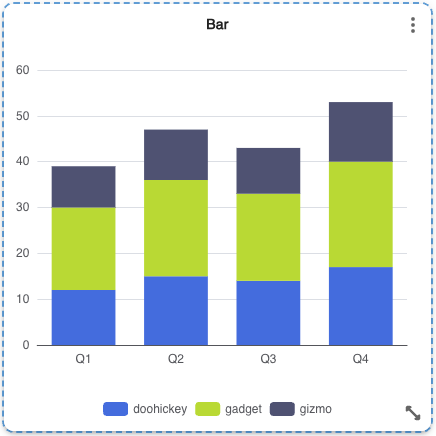
Compare query metrics side by side. Displays the query result as a bar chart.
Requires query results with at least two columns: one for categories (e.g., strings, numbers, dates) and one for numeric values (e.g., counts, sums, averages).
Return tabular records. Numeric columns become bar series; non-numeric columns define category axes.
After successfully submitting your query, gdotv will select the first variable from your query to use for the x-axis, and will display all other variables as values. These can be all customised. The number of points on the x-axis will always equate to the number of items in that array, whether the lengths of the value arrays matches or not.
Below is an example of valid query output and the resulting Bar chart:
Gauge (Chart)
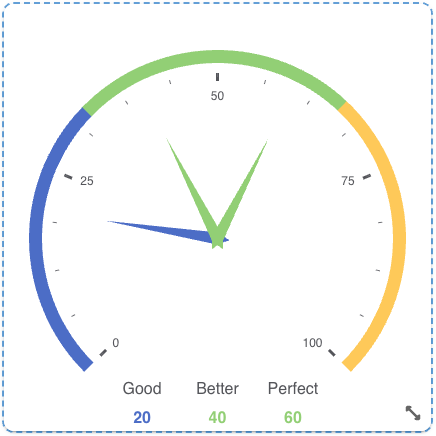
Gauge surfaces one or more key metrics as needles over a bounded range, with colored threshold bands for instant context. It’s built for “at‑a‑glance” health, capacity, and SLA tracking, and supports multiple values in a single panel.
Return one or more numeric values. Supported patterns include scalar values, name/value or label/value records, label + numeric field records, and numeric key/value maps. Optional fields: min, max.
Below is an example of valid query output and the resulting Gauge chart:
Line (Chart)
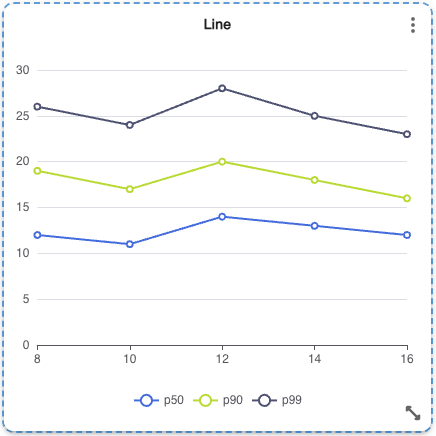
Track trends over time or ordered sequences with one or more series plotted on a single chart.
Requires query results with a sequence/time column and one or more numeric value columns.
Return tabular records. Numeric columns become line series; non-numeric columns define x-axis categories.
After successfully submitting your query, gdotv will select the first variable from your query to use for the x-axis, and will display all other variables as values. These can be customised from the menus at the top of the panel. The number of points on the x-axis will always be the number of items in that array, regardless of whether the arrays making up the values are the same length.
Below is an example of valid query output and the resulting Line chart:
Sankey (Chart)
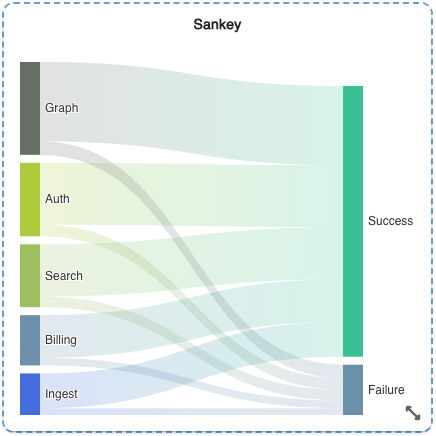
Show how values move from one step to the next. The thicker the link, the larger the flow. Use this to spot the biggest paths and where volume drops.
Requires query results with source, target, and numeric value columns for each flow.
Return flow records with source, target, and numeric value. You can return an array of links directly, or an object with links/edges/relationships plus optional nodes/data.
Below is an example of valid query output and the resulting Sankey chart:
Pie (Chart)
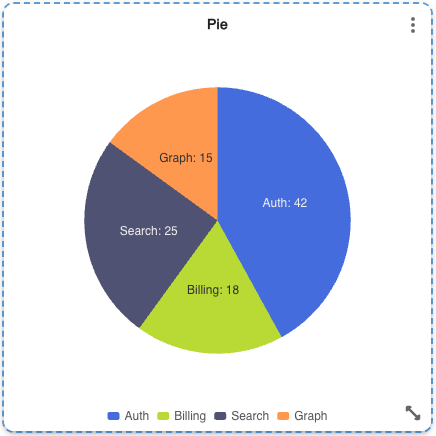
Show proportions from your query result. Displays the query results as a pie chart.
Requires query results with two columns: a category label and a numeric value.
Return numeric values with optional labels. Supported patterns include scalar values, name/value or label/value records, label + numeric field records, and numeric key/value maps.
Below is an example of valid query output and the resulting Pie chart:
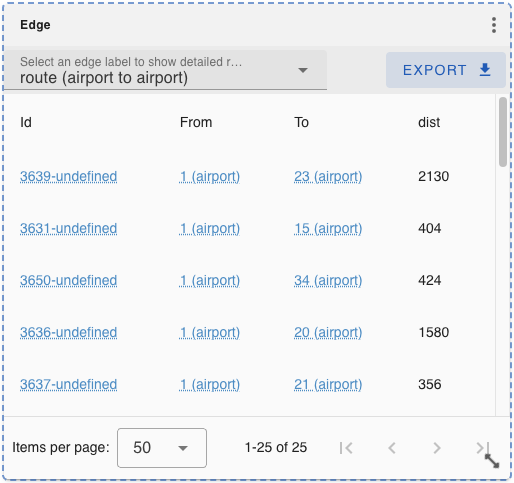
Edge (Graph)
List edges with endpoints and properties.
Requires edge results. Any edges in the query output will be displayed as a table using edge property names as columns.
In the results window you can filter between edge labels to show detailed results for, group results by different column headers, and filter the results in a variety of ways. By default, the results are grouped by Label.
For more details, refer to Edges View.
Below is an example of valid query output and the resulting Edge table:
Graph (Graph)
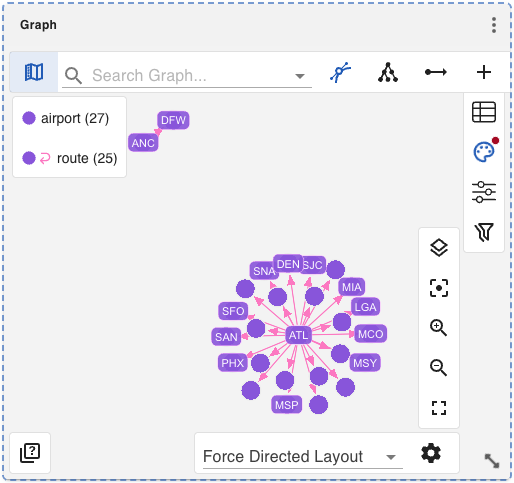
Visualize nodes/edges with layout and styling. Displays the results of your query as a graph view, allowing you to visualize your query output. For more details, refer to Graph View.
Requires graph results (vertices/edges).
Below is an example of valid query output and the resulting Graph view:
Vertex (Graph)
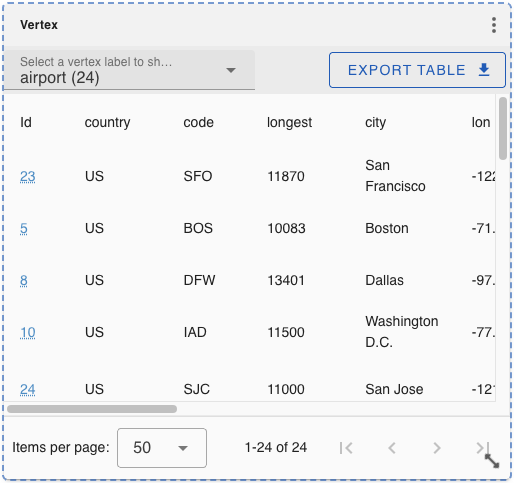
List vertices with key properties.
Requires vertex results. Any vertices in the query output will be displayed as a table using vertex property names as columns.
In the results window you can filter between vertex labels to show detailed results for, group results by different column headers, and filter the results in a variety of ways. By default, the results are grouped by Label.
For more details, refer to Vertices View.
Below is an example of valid query output and the resulting Vertex table:
JSON (Data)
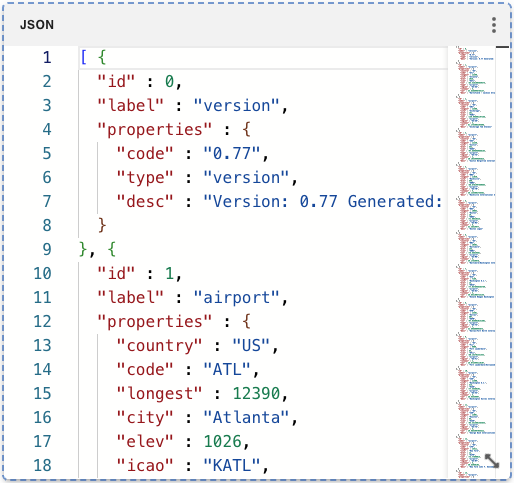
Raw JSON payload straight from the query. Displays a prettified version of the query's raw JSON result. For more details, refer to JSON Formatted Output.
Any query output; displayed as raw JSON for inspection.
Below is an example of valid query output and the resulting JSON output:
Result (Data)
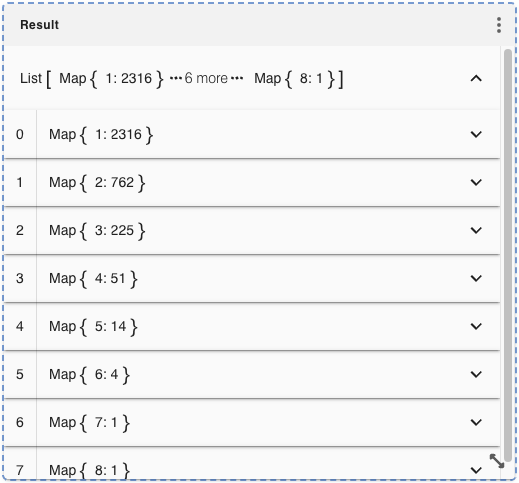
Data grid with sorting/filtering on query output. Displays the query's results as a hierarchical view that can be filtered and navigated easily.
Requires tabular rows.
Below is an example of valid query output and the resulting Result output:
Console (Data)
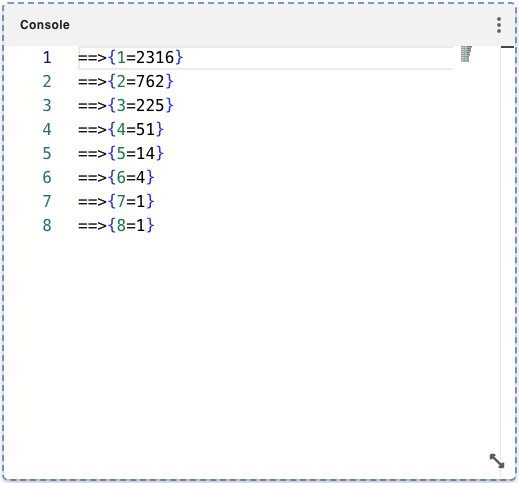
Plain text/console output from the query. Displays the raw output of your query as would be available on the Gremlin Console. For more details, refer to Gremlin Console Output.
Below is an example of valid query output and the resulting Console output:
Iframe (Content)
Embed an external dashboard or page. Displays a web page loaded from a URL.
Requires an embeddable URL as a direct value, first array item, or first object field.
Below is an example of valid query output and the resulting Iframe:
"https://status.github.com/"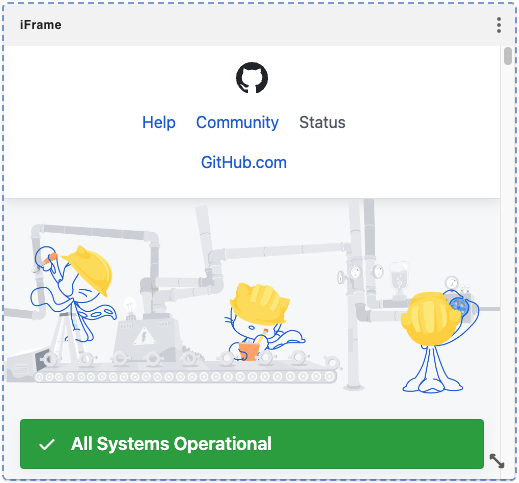
Image (Content)
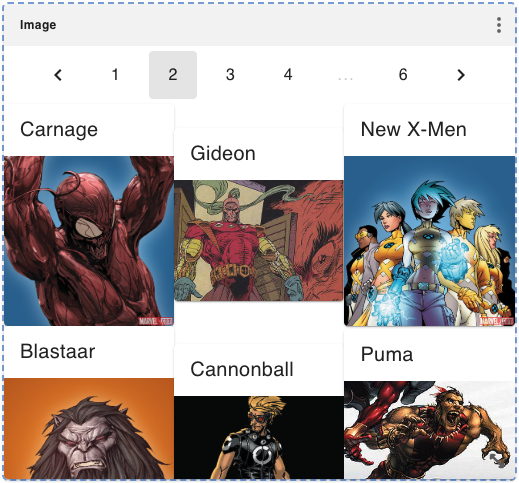
Render image URLs returned by the query. Displays one or more images loaded from image URL's in the database, optionally with a name and/or description. The name and description are dependent on the query.
Return image URLs as a single string, an image record, or a list of image strings/records.
Images are displayed in a gallery with up to 9 images per page, with names displayed above the image. Clicking on an image will open it full-size.
Below is an example of valid query output and the resulting Image view:
Label (Content)
Static callout text for context. Displays the results of your query as a label.
Requires a single string value (first row/column) to display as a label.
Return a label value directly, as the first array item, or from label/text/value/entry fields. Segmented labels are also supported.
Below is an example of valid query output and the resulting Label view:
2316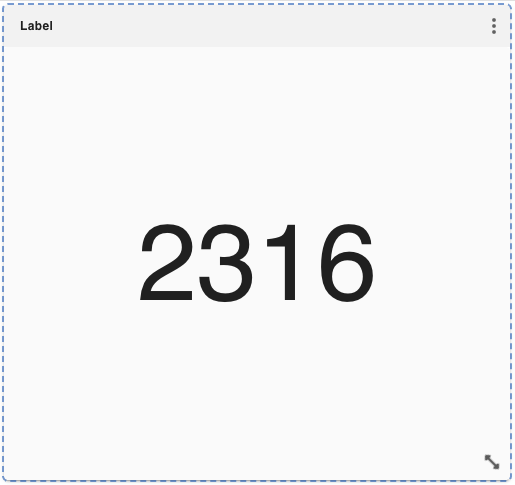
Markdown (Content)
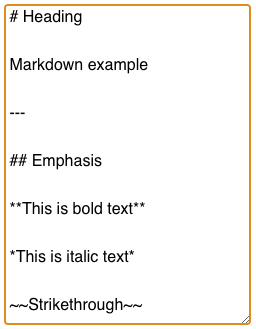
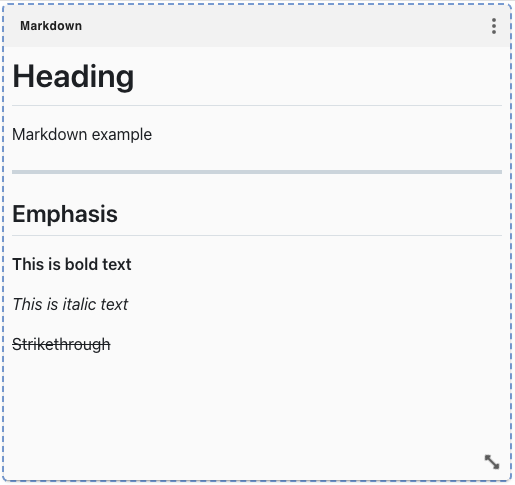
Notes or rich text alongside results. Displays what you have entered in Markdown.
Write notes directly in the editor; no query required.
https://markdown-it.github.io/
Below is some example input and the resulting Markdown output window:
Validation of query output for a dashboard panel
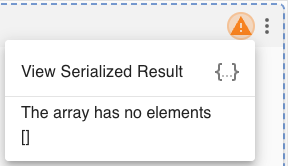
If the query you create for a Dashboard type does not meet the results specification of the type, there will be warnings displayed to indicate what parts of the records returned by the query don’t comply with the requirements of the Dashboard type. A green warning icon indicates that the query is partially incorrect, but it still runs. A red warning icon indicates that the query has failed to run. Click on the warning icon to view detailed information, or to toggle the serialized result.
Using Query Variables in Your Dashboard
Queries can be written with variables. If a saved Dashboard is opened to be run, gdotv will prompt for these variable values, allowing you to run the same Dashboard with various parameters that will influence what is being queried and displayed.
By making use of gdotv's split tabs feature, you can even have two of the same Dashboard open side by side with different variable values.
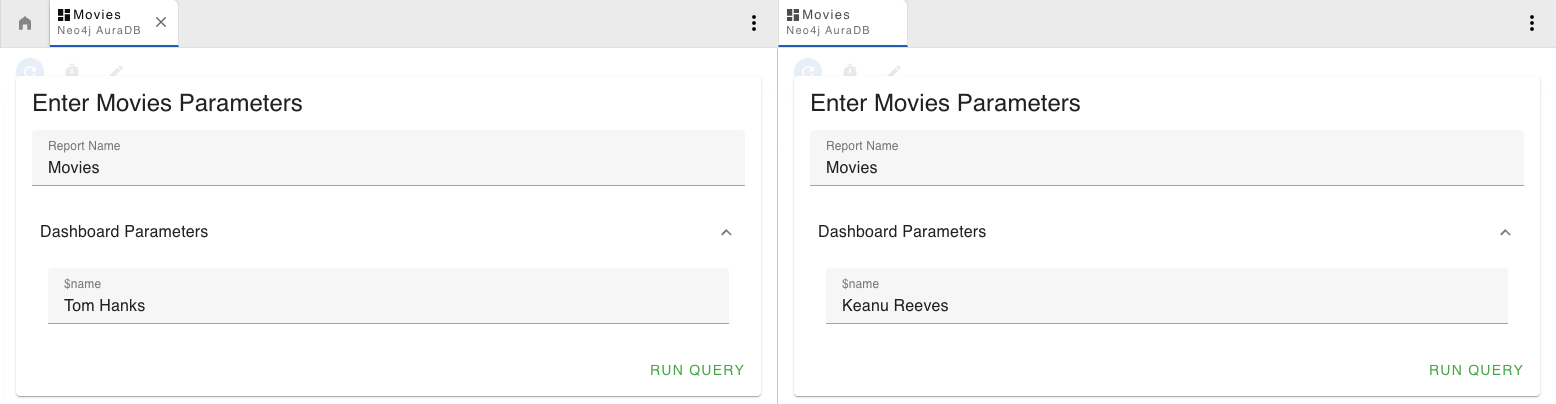
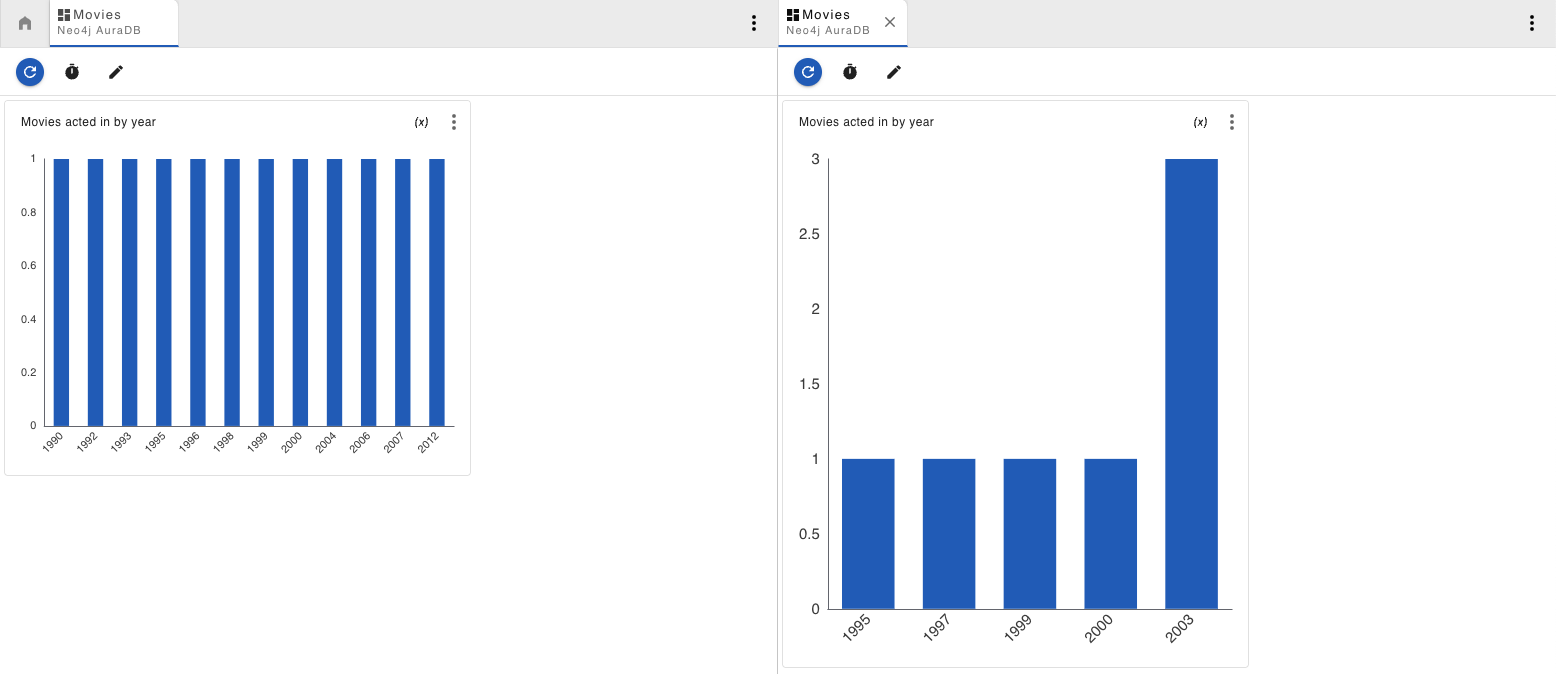
More information can be found in the Query Variables section.
How to Save and Run a Dashboard
To save a Dashboard, click on the save button in the Dashboard's toolbar . The Dashboard will then appear under Saved Dashboards under the current connection. Any queries inside the panels will also be saved under that connection's Saved Queries.
To run a saved Dashboard, find it in the connections side menu and click on it. This will open the Dashboard in View Mode.
You can open multiple instances of the Dashboard at the same time by clicking 'Open in New Tab' from the options menu next to the saved Dashboard.
How to Edit an Existing Dashboard
To edit an existing Dashboard, find the Dashboard you wish to edit in the Connections side menu under Saved Dashboards, click on the options icon, and click on Edit Dashboard . From here you can also rename the Dashboard.
If the Dashboard you wish to edit is already open but not in edit mode, you can click the Edit button in the Dashboard toolbar .
How to Delete a Dashboard
To delete a Dashboard, click on the Delete button in the Dashboard's top bar .
A saved Dashboard can also be deleted from the connections side menu.