Using gdotv on Azure Marketplace
gdotv is available as a Kubernetes application on the Azure Marketplace. It is a graph database client, perfect for developers looking to start on a graph project or support an existing one. It is compatible with Amazon Neptune, Neo4j, Memgraph, FalkorDB, JanusGraph, Gremlin Server, Dgraph and many more graph databases.
We provide state of the art development tools with advanced autocomplete, syntax checking and graph visualization.
With gdotv you can:
- View your graph database's schema in 1 click
- Write and run Gremlin, Cypher, SPARQL, GQL and DQL queries against your database
- Visualize query results across a variety of formats such as graph visualization, JSON and tables
- Explore your data interactively with our no-code graph database browser
- Debug Gremlin queries step by step, and access profiling tools for Gremlin and Cypher
It is deployed on an AKS cluster via a CNAB bundle (Porter), running five containerized services behind a LoadBalancer with TLS enabled by default.
Deploying a gdotv instance
To deploy gdotv from the Azure Marketplace, follow these steps:
- Navigate to the gdotv Azure Marketplace listing
- Click Get It Now, then click Create or Configure
Select or create an Azure subscription and resource group for the deployment
Configure the deployment parameters across the wizard steps:
Cluster Details
- Create New Cluster: Check to provision a new AKS cluster, or leave unchecked to deploy into an existing one
- Cluster Name: Name of an existing AKS cluster, or a name for a new one
- Kubernetes Version: Kubernetes version for the new cluster (e.g.
1.32,1.31,1.30) - Node VM Size: Azure VM size for cluster nodes (e.g.
Standard_D4s_v5) - Enable Auto-Scaling: Toggle automatic node scaling
- Node Count: Number of nodes (default: 2, range: 1–10)
Application Details
- Extension Name: Name for the Kubernetes extension (default:
gdotv-developer) - Hostname (optional): A custom domain name for your gdotv instance. Leave empty to auto-detect the LoadBalancer IP address
- gdotv Replica Count: Number of gdotv application replicas (default: 1, range: 1–10) — raise for HA
Security
- Keycloak Admin Password (optional): Leave empty to auto-generate
- gdotv Database Password (optional): Leave empty to auto-generate
- Keycloak Database Password (optional): Leave empty to auto-generate
Storage
- Storage Class:
Standard SSD (managed-csi)orPremium SSD (managed-csi-premium) - gdotv Database Size: Persistent volume size for the gdotv database (default:
20Gi) - Keycloak Database Size: Persistent volume size for the Keycloak database (default:
10Gi)
Click Review + Create, then Create
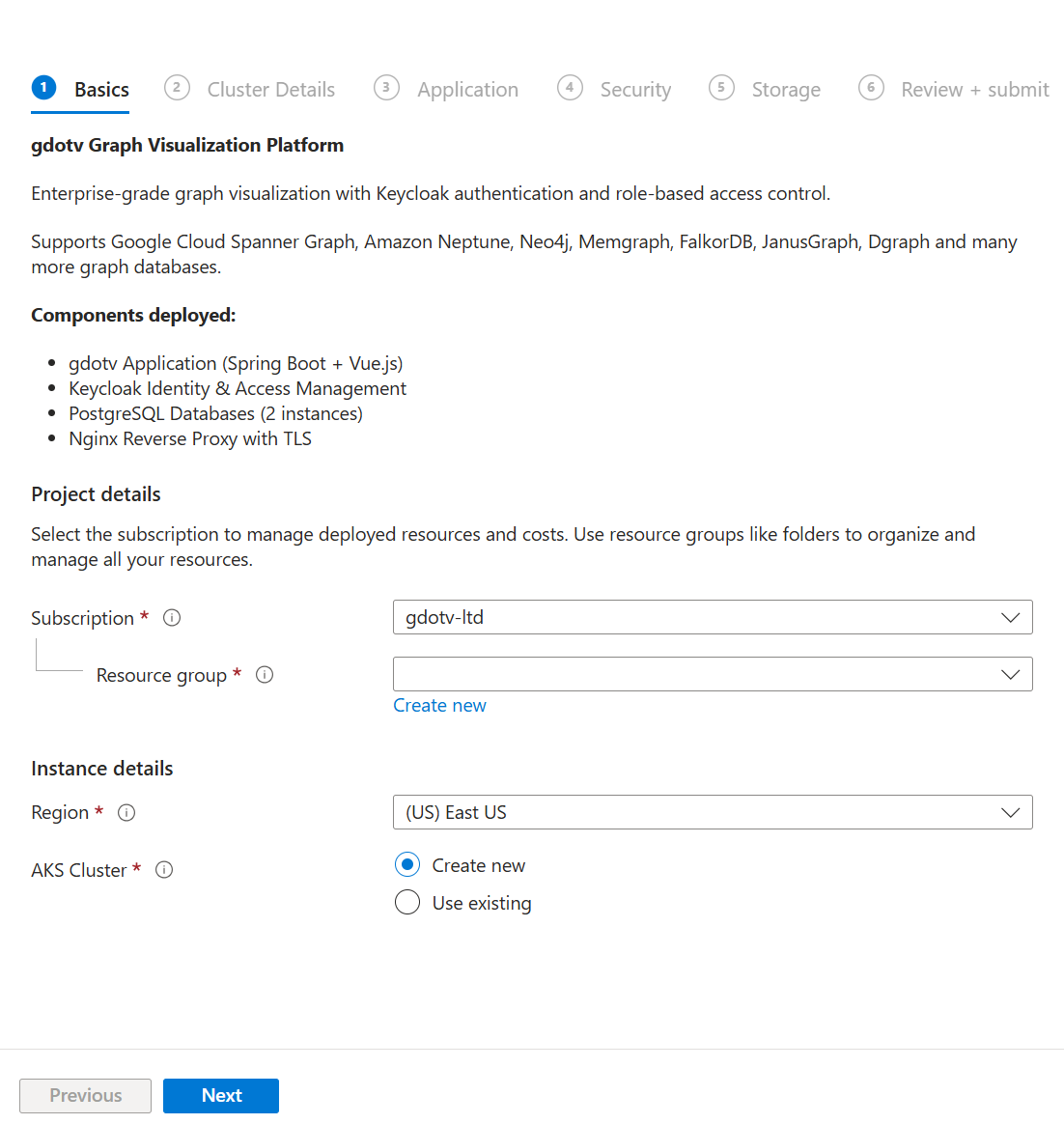
The deployment process is fully automatic. If no hostname is provided, gdotv will:
- Deploy all infrastructure components (nginx, Keycloak, PostgreSQL databases)
- Wait for the LoadBalancer to be assigned an external IP
- Configure the application with the detected IP and generate a self-signed TLS certificate
- Start the gdotv application
This process typically takes 5–15 minutes depending on whether a new AKS cluster is being created.
Pricing
gdotv on Azure Marketplace is usage-based. Charges are billed through your Azure account. For pricing details, refer to the Marketplace listing page.
Architecture
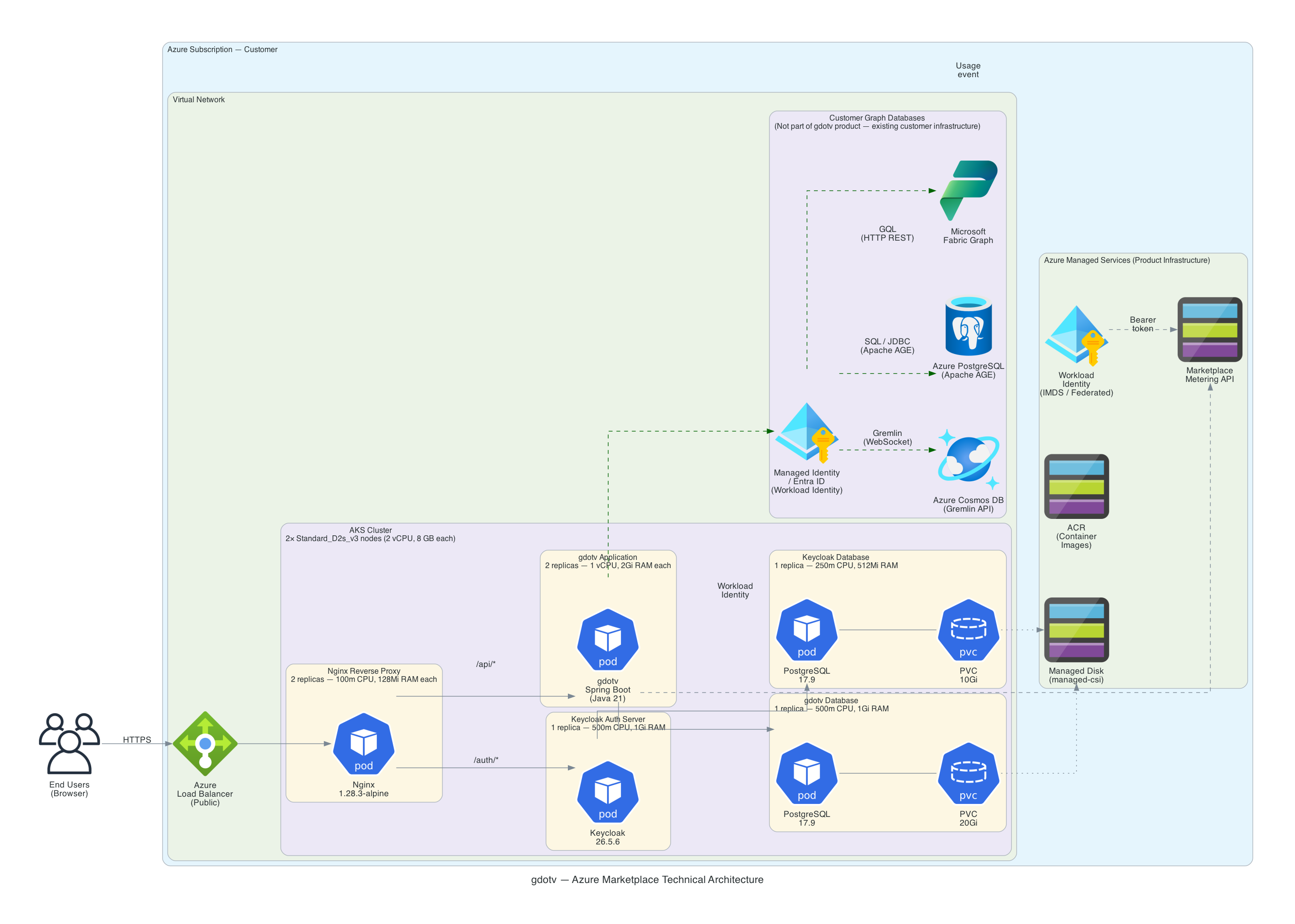
gdotv is deployed as a set of Kubernetes workloads on AKS via a CNAB bundle. The deployment includes five containers managed by Helm:
- gdotv-developer: The gdotv web application (Spring Boot + Vue.js)
- gdotv-keycloak: A Keycloak instance providing user authentication, federation and SSO capabilities
- gdotv-postgres: A PostgreSQL database storing gdotv application data
- gdotv-keycloak-postgres: A PostgreSQL database storing Keycloak configuration and realm data
- gdotv-nginx: An NGINX reverse proxy fronting the application over port 443, with TLS enabled by default
The architecture of the application is as shown below:
Sizing
The AKS node pool should be provisioned with sufficient resources to run all five containers. The following table provides sizing guidance:
| Node VM Size | Concurrent Users | Notes |
|---|---|---|
| Standard_D4s_v5 | Up to 10 users | Recommended for most teams |
| Standard_D8s_v5 | Up to 20 users | For larger teams |
| Standard_D16s_v5 | Over 20 users | For enterprise deployments |
| Standard_E4s_v5 | Up to 10 users | Memory-optimized, for large graph datasets |
| Standard_E8s_v5 | Up to 20 users | Memory-optimized, for larger teams with large graphs |
| Standard_E16s_v5 | Over 20 users | Memory-optimized, for enterprise deployments |
The v5 generation (Dsv5, Esv5) is recommended over the older v3 generation for better price-performance on newer Intel processors. The E-series (memory-optimized) is recommended when working with large graph datasets that require more memory per node. The v3 generation (Dsv3, Esv3) is also available for backward compatibility.
By default we provision a 2-node cluster — sufficient for evaluation and most non-HA production workloads. For high availability, raise the Node Count to 3 or more and the gdotv Replica Count to 2 or more.
Connecting to your AKS cluster
To run kubectl or helm commands against your gdotv deployment, you need to authenticate to the AKS cluster first.
Prerequisites
Install the following CLI tools if you haven't already:
- Azure CLI (
az) - kubectl
- helm (for Helm operations)
Authenticate with Azure CLI
Log in to your Azure account:
az loginSet your subscription:
az account set --subscription <SUBSCRIPTION_ID>Fetch cluster credentials
This configures kubectl to connect to your AKS cluster:
az aks get-credentials \
  --resource-group <RESOURCE_GROUP> \
  --name <CLUSTER_NAME>
For example:
az aks get-credentials \
  --resource-group gdotv-rg \
  --name gdotv-aks
Verify connectivity
kubectl get pods -n gdotvYou should see the gdotv pods listed with their status.
Accessing gdotv
Once the deployment is complete, find the external IP assigned to the LoadBalancer service:
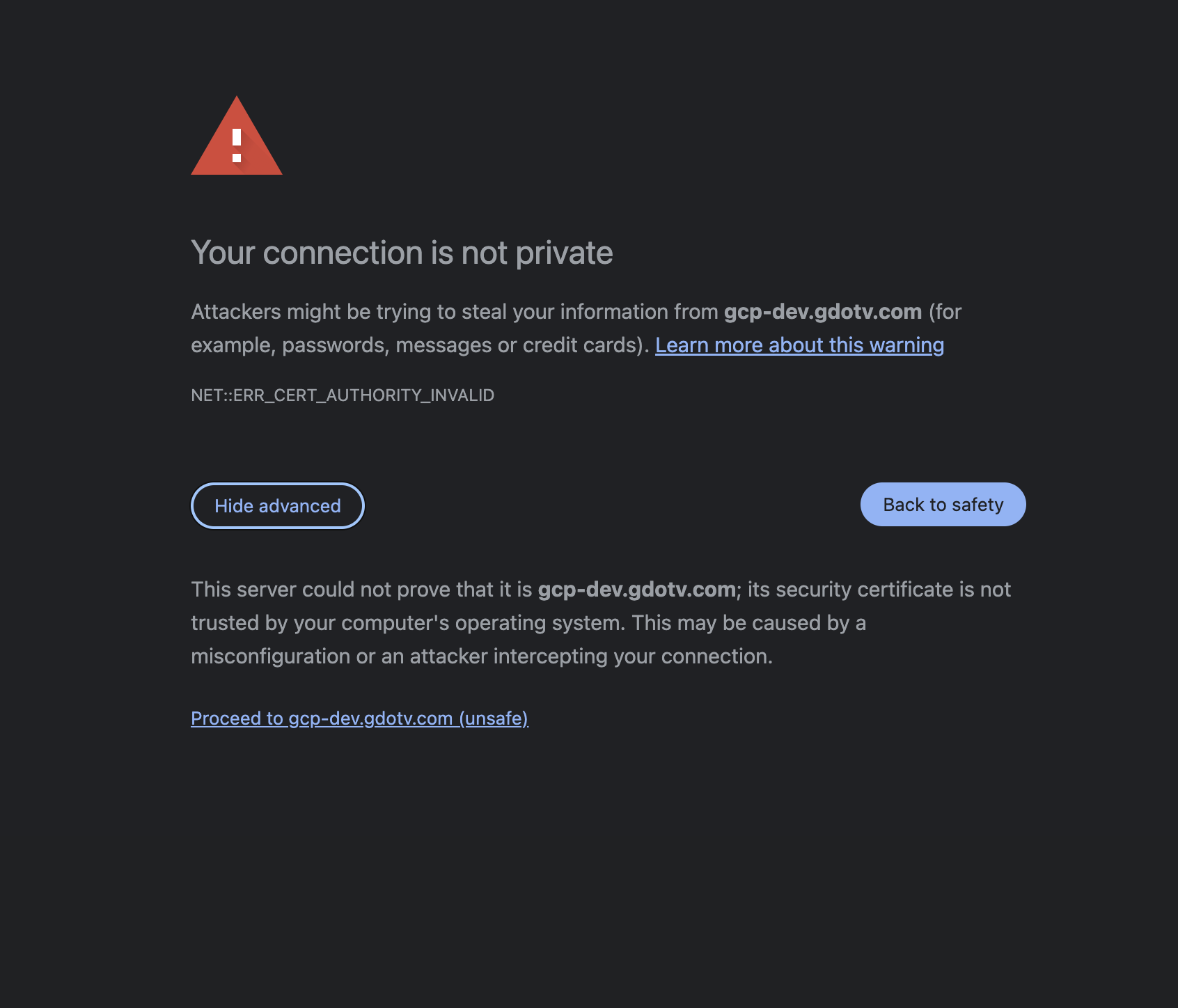
kubectl get svc -n gdotv -l app.kubernetes.io/component=nginxNavigate to https://<EXTERNAL_IP> in your browser. Since gdotv uses a self-signed TLS certificate by default, you will see a browser warning. Click Advanced, then Proceed to continue.
Authenticating to gdotv
First-time login
gdotv uses Keycloak for authentication. On first deployment, a default user is created automatically:
- Username:
gdotv - Password: Auto-generated during deployment
To retrieve the default user password from the Kubernetes secret:
kubectl get secret gdotv-developer-gdotv-secrets \
  -n gdotv \
  -o jsonpath='{.data.gdotv-user-password}' | base64 -d
When navigating to gdotv while unauthenticated, you will be presented with the Keycloak login screen:
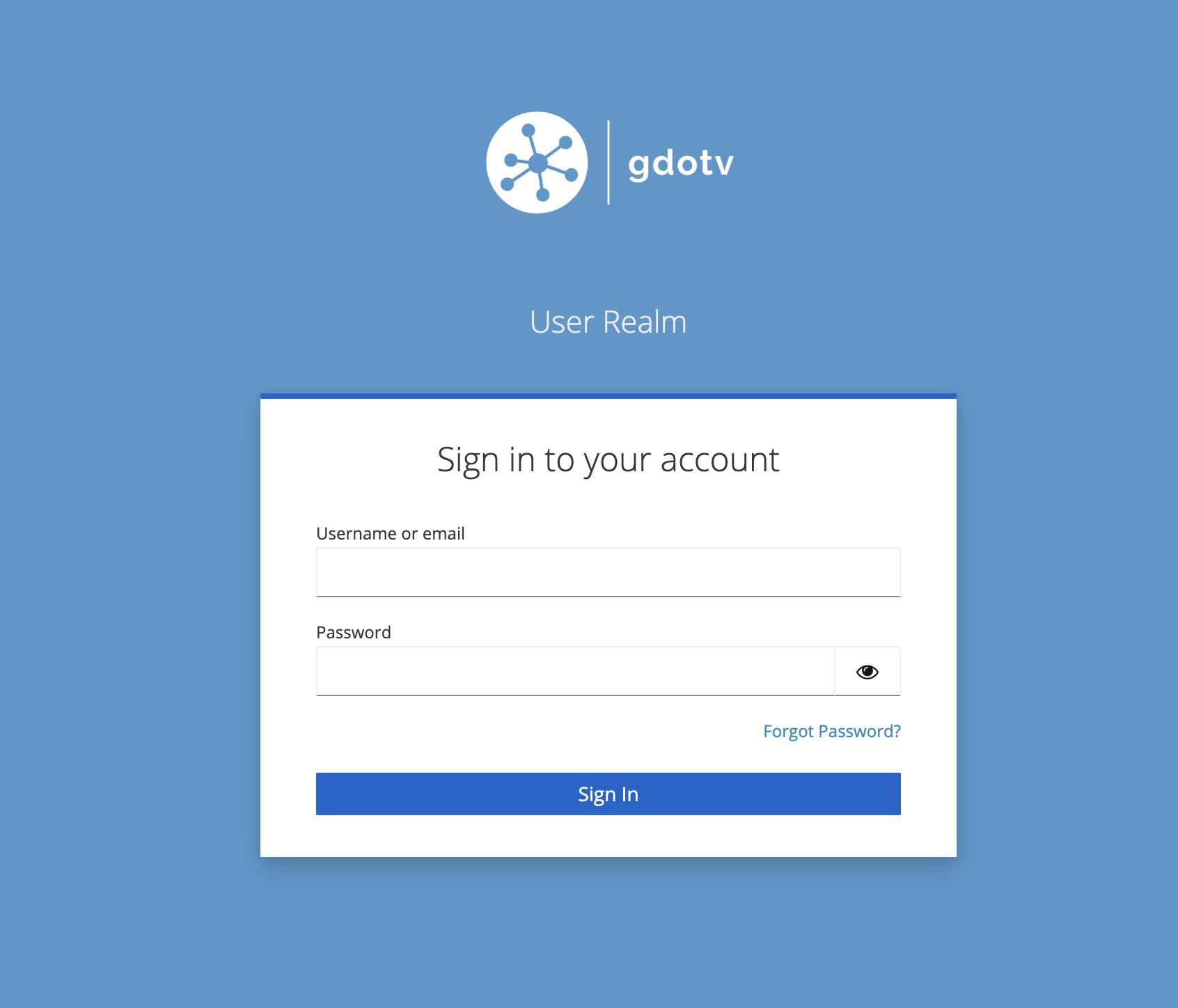
We recommend changing the default password after your first login. To do so, click on the username in the top-right menu bar, then select Change Password. You will be redirected to the Keycloak profile management page where you can update your password.
Authenticating to the gdotv Keycloak realm
The gdotv Keycloak realm is where all gdotv users are stored and managed. New authentication flows, such as Single Sign On, can be configured from the gdotv Keycloak realm admin console.
The gdotv Keycloak realm admin console can be accessed at:
https://<HOSTNAME>/kc/admin/gdotv/console/The default realm admin credentials are:
- Username:
gdotv - Password: Same as the default gdotv user password (see above)
Authenticating to the master Keycloak realm
The master Keycloak realm provides access to the master administration interface of Keycloak. Under normal circumstances, it should rarely need to be accessed. However, we recommend logging in after initial deployment to change the master admin password.
The master Keycloak realm admin console can be accessed at:
https://<HOSTNAME>/kc/admin/master/console/To retrieve the Keycloak admin credentials:
kubectl get secret gdotv-developer-keycloak-secrets \
  -n gdotv \
  -o jsonpath='{.data.admin-password}' | base64 -d
The default master admin username is admin.
Configuring a TLS certificate
By default, gdotv uses a self-signed certificate to serve its web interface over HTTPS. You may wish to configure your own trusted certificate against a domain name that you own.
WARNING
When changing the hostname, you must also update the TLS certificate in the same helm upgrade command. Running separate helm upgrade commands will cause values to be overwritten due to how --reuse-values works.
Renewing or replacing the certificate for the current hostname
To renew an expiring self-signed certificate or replace it with a CA-signed certificate for the hostname currently configured on your deployment:
HOSTNAME="<your-current-hostname>"

# Generate a self-signed certificate (or use your CA-issued .crt and .key files)
openssl req -x509 -nodes -days 3650 -newkey rsa:2048 \
  -keyout tls.key \
  -out tls.crt \
  -subj "/CN=gdotv/O=gdotv" \
  -addext "subjectAltName=DNS:${HOSTNAME}"

TLS_CRT=$(base64 -i tls.crt | tr -d '\n')
TLS_KEY=$(base64 -i tls.key | tr -d '\n')

helm upgrade gdotv-developer oci://gdotvdeveloper.azurecr.io/gdotv \
  --namespace gdotv \
  --reuse-values \
  --wait \
  --set nginx.tls.certificate="$TLS_CRT" \
  --set nginx.tls.privateKey="$TLS_KEY"

kubectl rollout restart deployment/gdotv-developer-nginx -n gdotv
Confirm the new certificate is active:
echo | openssl s_client -connect <HOSTNAME>:443 2>/dev/null | openssl x509 -noout -datesUsing a Kubernetes TLS secret for the current hostname
Alternatively, you can store your certificate as a Kubernetes TLS secret:
- Create a TLS secret in your gdotv namespace:
kubectl create secret tls my-tls-cert \
  -n gdotv \
  --cert=path/to/tls.crt \
--key=path/to/tls.key- Update the Helm release to use the secret:
helm upgrade gdotv-developer oci://gdotvdeveloper.azurecr.io/gdotv \
  --namespace gdotv \
  --reuse-values \
  --wait \
  --set nginx.tls.existingSecret=my-tls-cert

kubectl rollout restart deployment/gdotv-developer-nginx -n gdotv
Reverting to the default self-signed certificate
To revert to a self-signed certificate (e.g. after removing a custom domain), generate one for the current LoadBalancer IP and apply it alongside the hostname change:
# Get the current LoadBalancer IP
IP=$(kubectl get svc gdotv-developer-nginx -n gdotv -o jsonpath='{.status.loadBalancer.ingress[0].ip}')

# Generate a self-signed certificate for the IP
openssl req -x509 -nodes -days 365 -newkey rsa:2048 \
  -keyout tls.key -out tls.crt \
  -subj "/CN=$IP" -addext "subjectAltName=IP:$IP"

TLS_CRT=$(base64 -i tls.crt | tr -d '\n')
TLS_KEY=$(base64 -i tls.key | tr -d '\n')

# Revert hostname to the IP and apply the new cert in a single command
helm upgrade gdotv-developer oci://gdotvdeveloper.azurecr.io/gdotv \
  --namespace gdotv \
  --reuse-values \
  --wait \
  --set gdotv.env.hostname="$IP" \
  --set nginx.tls.existingSecret="" \
  --set nginx.tls.certificate="$TLS_CRT" \
  --set nginx.tls.privateKey="$TLS_KEY"

kubectl rollout restart deployment/gdotv-developer-keycloak -n gdotv
kubectl rollout restart deployment/gdotv-developer -n gdotv
kubectl rollout restart deployment/gdotv-developer-nginx -n gdotv
Configuring a custom hostname
If you deployed gdotv without a hostname (using the auto-detected LoadBalancer IP) and later want to configure a custom domain:
TIP
If you have an active session on the old hostname, your browser may have cached session data that causes redirects to the old address. We recommend logging out of gdotv before changing the hostname, or testing the new hostname in a private/incognito browser window.
Hostname and TLS certificate persistence
When gdotv auto-detects the LoadBalancer IP during deployment, the hostname is persisted in a Kubernetes ConfigMap and the TLS certificate in a Kubernetes Secret. A post-install/post-upgrade Job owns both values via Kubernetes Server-Side Apply, which means:
- Hostname survives pod restarts, node scaling events, and
helm upgrade - The TLS certificate is reused across upgrades (same serial number, same SAN) as long as the LoadBalancer IP does not change — clients that pinned the certificate continue to trust it
- You can safely update your deployment (e.g. to pick up a new gdotv application version) without losing the auto-detected hostname or regenerating the certificate
Changing from auto-detected to custom hostname
- Fetch the LoadBalancer IP of your gdotv deployment:
kubectl get svc gdotv-developer-nginx -n gdotv -o jsonpath='{.status.loadBalancer.ingress[0].ip}'Create a DNS record (A record) on your domain manager of choice, pointing your domain (e.g.
gdotv.example.com) to the LoadBalancer IP.Transfer ownership of the Job-managed fields from the hostname-detect Job back to Helm. While auto-detect was enabled, the hostname-detect Job owned
.spec.replicason both Deployments and the.data(TLS cert) plusgdotv.com/tls-hostnameannotation on thegdotv-developer-tlsSecret, all via Kubernetes Server-Side Apply. When you disable auto-detect, Helm needs to take ownership of these fields — but the upgrade will fail with an SSA conflict unless the Job's prior ownership record is removed first:
# Strip Job ownership from Deployments
for dep in gdotv-developer gdotv-developer-nginx; do
  kubectl -n gdotv get deploy $dep --show-managed-fields -o json \
    | jq '.metadata.managedFields |= map(select(.manager != "gdotv-hostname-detect"))' \
    > /tmp/${dep}-stripped.json
  kubectl replace --raw "/apis/apps/v1/namespaces/gdotv/deployments/$dep" \
    -f /tmp/${dep}-stripped.json
done

# Strip Job ownership from the TLS Secret
kubectl -n gdotv get secret gdotv-developer-tls --show-managed-fields -o json \
  | jq '.metadata.managedFields |= map(select(.manager != "gdotv-hostname-detect"))' \
  > /tmp/gdotv-developer-tls-stripped.json
kubectl replace --raw "/api/v1/namespaces/gdotv/secrets/gdotv-developer-tls" \
  -f /tmp/gdotv-developer-tls-stripped.json
Note: --show-managed-fields is required on kubectl 1.30+ — the flag defaults to omitting .metadata.managedFields from -o json output, which would make the jq filter a no-op.
This one-time cleanup is only needed on the autodetect → static-hostname transition. It does not affect running pods or the certificate currently in use; it only rewrites the bookkeeping metadata that Kubernetes uses to resolve SSA ownership conflicts.
- Update the hostname and TLS certificate together in a single
helm upgradecommand. Disable hostname auto-detection so that gdotv and Keycloak use your custom hostname instead of the auto-detected one:
With a self-signed certificate:
HOSTNAME="gdotv.example.com"

openssl req -x509 -nodes -days 3650 -newkey rsa:2048 \
  -keyout tls.key -out tls.crt \
  -subj "/CN=gdotv/O=gdotv" \
  -addext "subjectAltName=DNS:${HOSTNAME}"

TLS_CRT=$(base64 -i tls.crt | tr -d '\n')
TLS_KEY=$(base64 -i tls.key | tr -d '\n')

helm upgrade gdotv-developer oci://gdotvdeveloper.azurecr.io/gdotv \
  --namespace gdotv \
  --reuse-values \
  --wait \
  --set gdotv.hostnameDetect.enabled=false \
  --set gdotv.env.hostname="$HOSTNAME" \
  --set nginx.tls.certificate="$TLS_CRT" \
  --set nginx.tls.privateKey="$TLS_KEY"
With a Kubernetes TLS secret:
kubectl create secret tls my-tls-cert \
  -n gdotv \
  --cert=path/to/tls.crt \
  --key=path/to/tls.key

helm upgrade gdotv-developer oci://gdotvdeveloper.azurecr.io/gdotv \
  --namespace gdotv \
  --reuse-values \
  --wait \
  --set gdotv.hostnameDetect.enabled=false \
  --set gdotv.env.hostname=gdotv.example.com \
--set nginx.tls.existingSecret=my-tls-cert- Restart all services to pick up the changes (Keycloak first, then gdotv):
kubectl rollout restart deployment/gdotv-developer-keycloak -n gdotv
kubectl rollout restart deployment/gdotv-developer -n gdotv
kubectl rollout restart deployment/gdotv-developer-nginx -n gdotv
The key difference is the --set gdotv.hostnameDetect.enabled=false flag, which ensures that gdotv and Keycloak read your custom hostname from the Helm values rather than from the auto-detected ConfigMap.
Upgrading to a new version
gdotv receives frequent updates with new features and improvements. Upgrading only updates the gdotv application container. Keycloak, nginx and the databases are unaffected.
helm upgrade gdotv-developer oci://gdotvdeveloper.azurecr.io/gdotv \
  --namespace gdotv \
  --reuse-values \
  --wait \
  --set gdotv.image.tag=<NEW_VERSION>
--reuse-values preserves all previously set values (passwords, hostname, certificates) so they do not need to be passed again.
Monitor the rollout:
kubectl rollout status deployment/gdotv-developer -n gdotvIf the new version fails to start, roll back to the previous release:
helm rollback gdotv-developer -n gdotvBackup and Restore
Recommended: Azure Backup for AKS
For production deployments, we recommend using Azure Backup for AKS, a managed Azure service that provides scheduled, namespace-scoped backups of both Kubernetes resources (configs, secrets) and persistent volume data.
To set up Azure Backup for AKS:
- Register the required providers and enable the backup extension on your cluster:
az provider register --namespace Microsoft.KubernetesConfiguration
az provider register --namespace Microsoft.DataProtection

az k8s-extension create \
  --name azure-aks-backup \
  --extension-type microsoft.dataprotection.kubernetes \
  --scope cluster \
  --cluster-type managedClusters \
  --cluster-name <CLUSTER_NAME> \
  --resource-group <RESOURCE_GROUP> \
  --release-train stable \
  --configuration-settings blobContainer=<BLOB_CONTAINER> \
    storageAccount=<STORAGE_ACCOUNT> \
    storageAccountResourceGroup=<STORAGE_RG> \
storageAccountSubscriptionId=<SUBSCRIPTION_ID>- Create a Backup Vault and configure a backup policy targeting the
gdotvnamespace via the Azure Portal or CLI. Refer to the Azure Backup for AKS documentation for full steps.
Manual backup with pg_dump
For one-off backups or environments where Azure Backup for AKS is not available, you can back up the PostgreSQL databases directly. gdotv uses two PostgreSQL instances: one for the application (gdotv-developer-gdotv-postgres) and one for Keycloak (gdotv-developer-keycloak-postgres).
Back up the gdotv application database:
kubectl exec -n gdotv statefulset/gdotv-developer-gdotv-postgres -- \
  pg_dump -U postgres --clean --if-exists postgres \
  > gdotv-backup-$(date +%Y%m%d-%H%M%S).sql
Back up the Keycloak database:
kubectl exec -n gdotv statefulset/gdotv-developer-keycloak-postgres -- \
  pg_dump -U postgres --clean --if-exists postgres \
  > keycloak-backup-$(date +%Y%m%d-%H%M%S).sql
Restore the gdotv application database:
WARNING
Restoring overwrites current data. Stop the dependent application pod first to avoid write conflicts.
# Scale down the application before restoring
kubectl scale deployment/gdotv-developer -n gdotv --replicas=0

# Restore
cat gdotv-backup-<timestamp>.sql | kubectl exec -i -n gdotv \
  statefulset/gdotv-developer-gdotv-postgres -- \
  psql -U postgres postgres

# Scale back up
kubectl scale deployment/gdotv-developer -n gdotv --replicas=1
Restore the Keycloak database:
# Scale down Keycloak before restoring
kubectl scale deployment/gdotv-developer-keycloak -n gdotv --replicas=0

# Restore
cat keycloak-backup-<timestamp>.sql | kubectl exec -i -n gdotv \
  statefulset/gdotv-developer-keycloak-postgres -- \
  psql -U postgres postgres

# Scale back up
kubectl scale deployment/gdotv-developer-keycloak -n gdotv --replicas=1
Stop / Start Services
WARNING
In auto-detect hostname mode (the default on Azure Marketplace), the gdotv-developer and gdotv-developer-nginx Deployment replica counts are owned by the hostname-detect Job via Server-Side Apply. Using plain kubectl scale on these two Deployments will register the default kubectl field manager as a new owner, which causes a conflict the next time the Job runs (e.g. on the next helm upgrade). Use kubectl patch with a matching field manager instead, as shown below.
Stop all services (scale to zero)
This preserves PVCs and Secrets — data is not lost.
kubectl patch deployment/gdotv-developer -n gdotv \
  --field-manager=gdotv-hostname-detect --type=merge \
  -p '{"spec":{"replicas":0}}'
kubectl patch deployment/gdotv-developer-nginx -n gdotv \
  --field-manager=gdotv-hostname-detect --type=merge \
  -p '{"spec":{"replicas":0}}'
kubectl scale deployment/gdotv-developer-keycloak -n gdotv --replicas=0
kubectl scale statefulset/gdotv-developer-gdotv-postgres -n gdotv --replicas=0
kubectl scale statefulset/gdotv-developer-keycloak-postgres -n gdotv --replicas=0
Start all services
Start order matters: databases first, then Keycloak, then gdotv, then nginx.
kubectl scale statefulset/gdotv-developer-gdotv-postgres -n gdotv --replicas=1
kubectl scale statefulset/gdotv-developer-keycloak-postgres -n gdotv --replicas=1
kubectl scale deployment/gdotv-developer-keycloak -n gdotv --replicas=1
kubectl patch deployment/gdotv-developer -n gdotv \
  --field-manager=gdotv-hostname-detect --type=merge \
  -p '{"spec":{"replicas":1}}'
kubectl patch deployment/gdotv-developer-nginx -n gdotv \
  --field-manager=gdotv-hostname-detect --type=merge \
  -p '{"spec":{"replicas":1}}'
Restart a single service
kubectl rollout restart deployment/gdotv-developer -n gdotv
kubectl rollout restart deployment/gdotv-developer-keycloak -n gdotv
kubectl rollout restart deployment/gdotv-developer-nginx -n gdotv
Watch rollout progress:
kubectl rollout status deployment/gdotv-developer -n gdotvCheck Logs
gdotv application
# Live logs
kubectl logs -f -n gdotv deployment/gdotv-developer

# Logs from the previous (crashed) container
kubectl logs -n gdotv deployment/gdotv-developer --previous
Keycloak
kubectl logs -f -n gdotv deployment/gdotv-developer-keycloaknginx
kubectl logs -f -n gdotv deployment/gdotv-developer-nginxBootstrap job
kubectl get pods -n gdotv -l app.kubernetes.io/component=bootstrap
kubectl logs -n gdotv -l app.kubernetes.io/component=bootstrap
All pods
kubectl get pods -n gdotv -l app.kubernetes.io/instance=gdotv-developerPod events (useful for crash diagnosis)
kubectl describe pod -n gdotv -l app.kubernetes.io/component=gdotv-appScaling
Scale the gdotv application
The gdotv application is stateless (session state is stored in PostgreSQL). It can safely run multiple replicas.
In auto-detect hostname mode (the default), the gdotv-developer Deployment's replica count is owned by the hostname-detect Job. Scale it persistently by rerunning helm upgrade with the Job's replica target:
helm upgrade gdotv-developer oci://gdotvdeveloper.azurecr.io/gdotv \
  --namespace gdotv \
  --reuse-values \
  --wait \
  --set gdotv.hostnameDetect.replicaCount=3
For a one-off scale without rerunning the Job, use kubectl patch with the matching field manager:
kubectl patch deployment/gdotv-developer -n gdotv \
  --field-manager=gdotv-hostname-detect --type=merge \
  -p '{"spec":{"replicas":3}}'
If you have disabled auto-detect mode (gdotv.hostnameDetect.enabled=false), you can use kubectl scale or --set gdotv.replicaCount=3 as expected.
Scale nginx
nginx is stateless and can be scaled freely. As with gdotv, in auto-detect mode the replica count is owned by the hostname-detect Job — use kubectl patch or helm upgrade:
kubectl patch deployment/gdotv-developer-nginx -n gdotv \
  --field-manager=gdotv-hostname-detect --type=merge \
  -p '{"spec":{"replicas":3}}'

# Or persistently:
helm upgrade gdotv-developer oci://gdotvdeveloper.azurecr.io/gdotv \
  --namespace gdotv \
  --reuse-values \
  --wait \
  --set nginx.replicaCount=3
Keycloak and databases
Keycloak and both PostgreSQL instances run as single replicas. Scaling them requires additional configuration (Keycloak clustering, PostgreSQL replication) that is outside the scope of this deployment. For production HA requirements, consider using Azure Database for PostgreSQL and a Keycloak Operator.
Cluster-level scaling
If pods cannot be scheduled due to insufficient node resources, scale the AKS node pool:
az aks scale \
  --resource-group <RESOURCE_GROUP> \
  --name <CLUSTER_NAME> \
  --node-count 5 \
  --nodepool-name <NODE_POOL_NAME>
Or update the autoscaler range:
az aks update \
  --resource-group <RESOURCE_GROUP> \
  --name <CLUSTER_NAME> \
  --update-cluster-autoscaler \
  --min-count 1 \
  --max-count 10
Azure: Managed Identity for Azure Connectors
To connect gdotv to Azure services without storing credentials in the cluster, use Azure Workload Identity. This links the Kubernetes Service Account used by the gdotv pod to an Azure Managed Identity, providing short-lived credentials automatically.
Prerequisites
Verify that the AKS cluster has the OIDC issuer and Workload Identity add-on enabled:
az aks show \
  --resource-group <RESOURCE_GROUP> \
  --name <CLUSTER_NAME> \
  --query "{oidcIssuer: oidcIssuerProfile.issuerUrl, workloadIdentity: securityProfile.workloadIdentity}"
If not enabled, update the cluster:
az aks update \
  --resource-group <RESOURCE_GROUP> \
  --name <CLUSTER_NAME> \
  --enable-oidc-issuer \
  --enable-workload-identity
Step 1 - Create a Managed Identity
az identity create \
  --resource-group <RESOURCE_GROUP> \
  --name gdotv-backend
Note the clientId and principalId from the output.
Step 2 - Grant permissions
Add only the roles required for the Azure services gdotv needs to connect to. For example, to connect to Azure Cosmos DB for Apache Gremlin:
az role assignment create \
  --assignee <MANAGED_IDENTITY_PRINCIPAL_ID> \
  --role "Cosmos DB Account Reader Role" \
  --scope /subscriptions/<SUBSCRIPTION_ID>/resourceGroups/<RESOURCE_GROUP>/providers/Microsoft.DocumentDB/databaseAccounts/<COSMOS_ACCOUNT>
Step 3 - Create a Federated Identity Credential
Bind the Kubernetes Service Account in the gdotv namespace to the Managed Identity:
AKS_OIDC_ISSUER=$(az aks show \
  --resource-group <RESOURCE_GROUP> \
  --name <CLUSTER_NAME> \
  --query oidcIssuerProfile.issuerUrl -o tsv)

az identity federated-credential create \
  --name gdotv-federated \
  --identity-name gdotv-backend \
  --resource-group <RESOURCE_GROUP> \
  --issuer "$AKS_OIDC_ISSUER" \
  --subject "system:serviceaccount:gdotv:gdotv-developer" \
  --audience "api://AzureADTokenExchange"
Step 4 - Annotate the Kubernetes Service Account
kubectl annotate serviceaccount gdotv-developer -n gdotv \
  azure.workload.identity/client-id=<MANAGED_IDENTITY_CLIENT_ID> \
  --overwrite
Restart the gdotv pod to pick up the annotation:
kubectl rollout restart deployment/gdotv-developer -n gdotvUninstalling
To completely remove gdotv from your cluster:
helm uninstall gdotv-developer -n gdotv
kubectl delete namespace gdotv
Note that persistent volumes (PostgreSQL data) are not automatically deleted. To remove them:
kubectl delete pvc --all -n gdotvTo also delete the AKS cluster (if it was created for gdotv):
az aks delete \
  --resource-group <RESOURCE_GROUP> \
  --name <CLUSTER_NAME> \
  --yes --no-wait
Troubleshooting
The application is not accessible over HTTPS
- Check that the LoadBalancer has an external IP assigned:
kubectl get svc -n gdotv - Verify that AKS network security rules allow inbound traffic on port 443
- Check that all pods are running:
kubectl get pods -n gdotv
gdotv pods are in CrashLoopBackOff
This typically indicates a hostname or Keycloak connectivity issue. Check the logs:
kubectl logs -n gdotv deployment/gdotv-developerCommon causes:
- Hostname mismatch between the configured hostname and the actual service endpoint
- Keycloak not fully ready when gdotv starts (init containers should handle this, but check events)
Pods stuck in Pending state
The cluster may not have sufficient node resources. Check events:
kubectl get events -n gdotv --sort-by='.lastTimestamp' | tail -20If nodes are the issue, scale the node pool or update the autoscaler range (see Cluster-level scaling above).
Bootstrap job failed
The bootstrap job creates the initial Keycloak user. If it failed, check its logs:
kubectl logs -n gdotv -l app.kubernetes.io/component=bootstrapYou can re-trigger it by running a Helm upgrade:
helm upgrade gdotv-developer oci://gdotvdeveloper.azurecr.io/gdotv \
  --namespace gdotv \
  --reuse-values
Additional support
For any support queries, email us at support@gdotv.com. Support is free and we answer all queries within one business day.