Using gdotv on AWS Marketplace (ECS)
gdotv is available as a container application on the AWS Marketplace. It is a graph database client, perfect for developers looking to start on a graph project or support an existing one. It is compatible with Amazon Neptune's Gremlin and Cypher API, as well as Apache TinkerPop enabled graph databases such as JanusGraph, Gremlin Server and Aerospike Graph. It is also compatible with Google Cloud Spanner Graph, Dgraph, Oracle Graph and many more graph databases.
We provide state of the art development tools with advanced autocomplete, syntax checking and graph visualization.
With gdotv you can:
- View your graph database's schema in 1 click
- Write and run Gremlin, Cypher, SPARQL, GQL and DQL queries against your database
- Visualize query results across a variety of formats such as graph visualization, JSON and tables
- Explore your data interactively with our no-code graph database browser
- Debug Gremlin queries step by step, and access profiling tools for Gremlin and Cypher
It is deployed on Amazon ECS using AWS Fargate as a single task running five containerized services behind a Network Load Balancer with TLS enabled by default. There are no servers or Kubernetes clusters to manage.
Which delivery option should I use?
gdotv offers two container delivery options on AWS Marketplace from the same listing:
- ECS (this guide) — the simplest path. AWS Fargate runs the whole stack as one serverless task; no cluster to operate. Recommended for evaluation and most single-instance deployments.
- EKS — deploys onto Amazon EKS via Helm. Choose this if you already run Kubernetes, need horizontal scaling/HA, or want to bring your own VPC.
Deploying a gdotv instance
gdotv on ECS is deployed with a single one-click CloudFormation stack. AWS provisions a small self-contained VPC, the Fargate task, an EFS file system for persistence and a Network Load Balancer — no prior container or Kubernetes experience is required.
Pricing
gdotv on AWS Marketplace (ECS) is usage-based. Charges are billed through your AWS account via the AWS Marketplace Metering Service. For pricing details, refer to the Marketplace listing page.
Architecture
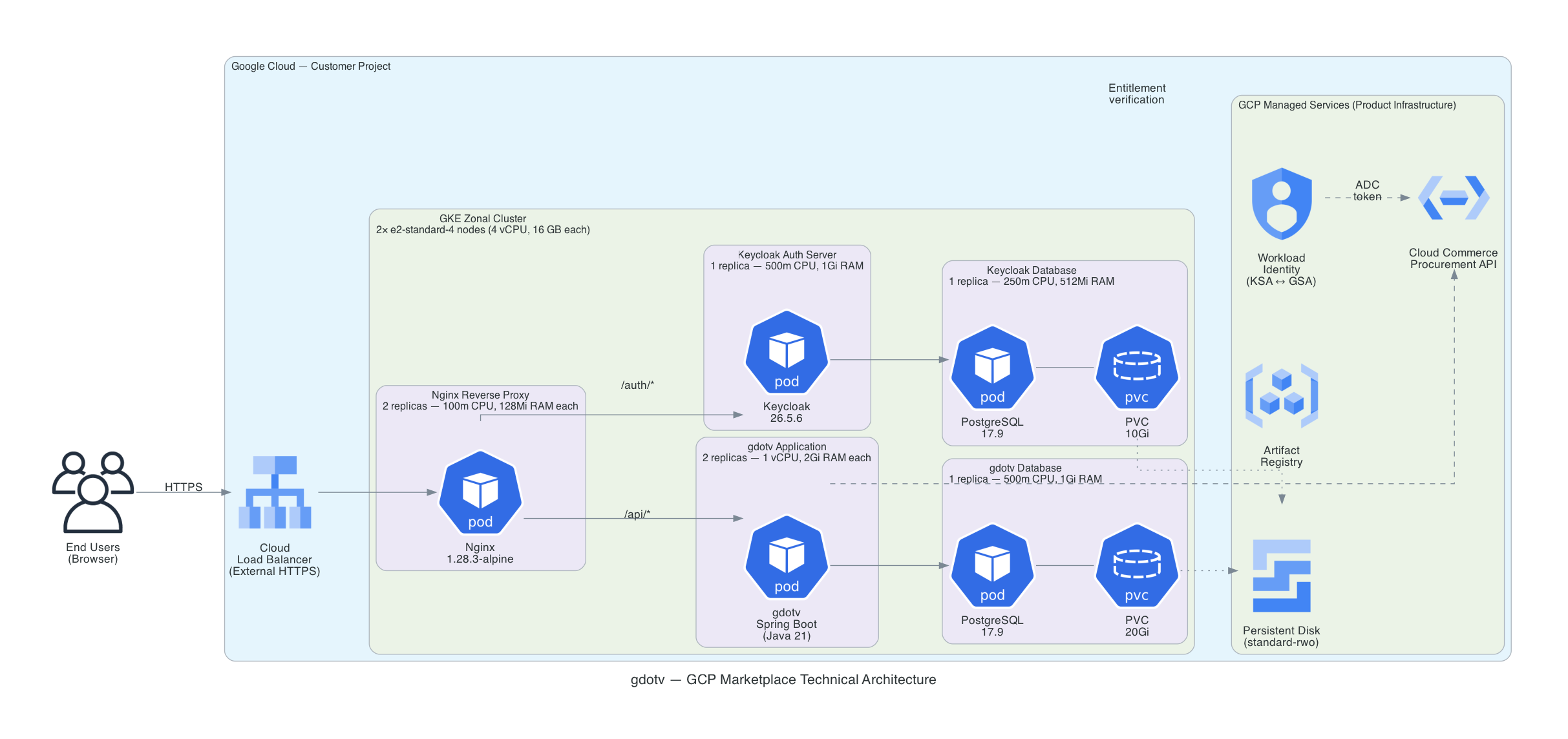
gdotv runs as a single Amazon ECS (Fargate) task containing five long-running containers, fronted by a Network Load Balancer and backed by an Amazon EFS file system:
- gdotv-developer: The gdotv web application (Spring Boot + Vue.js). This container also reports usage to the AWS Marketplace Metering Service using the ECS task role.
- keycloak: A Keycloak instance providing user authentication, federation and SSO capabilities
- gdotv-postgres: A PostgreSQL database storing gdotv application data
- keycloak-postgres: A PostgreSQL database storing Keycloak configuration and realm data
- gdotv-nginx: An NGINX reverse proxy fronting the application over port 443, with TLS enabled by default
Two short-lived helper containers run at task start: an init container (fetches the nginx + Keycloak realm configuration and generates the self-signed TLS certificate) and a bootstrap container (creates the initial gdotv user in Keycloak, then exits).
Because all containers share one task network namespace, they communicate over localhost. PostgreSQL data is persisted on Amazon EFS so it survives task restarts and redeployments.
Sizing
The whole stack runs in one Fargate task, so you size it by choosing the task's vCPU and memory (the TaskCpu / TaskMemory parameters). The following table provides sizing guidance:
Task size (TaskCpu / TaskMemory) | Concurrent Users | Notes |
|---|---|---|
| 2 vCPU / 8 GB | A few users | Minimum; suitable for light evaluation |
| 4 vCPU / 16 GB | Up to 10 users | Default — recommended for most teams |
| 8 vCPU / 24 GB | Up to 20 users | For larger teams |
| 16 vCPU / 30 GB | Over 20 users | For larger teams with large graph datasets |
TaskCpu and TaskMemory must be a valid Fargate combination. The single-task model scales vertically (a bigger task) rather than horizontally — see Scaling. For multi-replica horizontal scaling and HA, use the EKS delivery option.
AWS infrastructure costs
In addition to the gdotv software charge (billed hourly through the AWS Marketplace Metering Service), the CloudFormation stack creates standard AWS resources that are billed to your account at normal AWS rates. The table below is an approximate us-east-1 estimate for the default configuration (one 4 vCPU / 16 GB Fargate task running 24/7); actual costs vary by region, task size, uptime and data transfer:
| AWS resource | Approx. monthly cost (default config) |
|---|---|
| Fargate task — 4 vCPU / 16 GB (on-demand, 24/7) | ~$145 |
| Network Load Balancer | ~$16 + LCU |
| EFS (data + config, bursting) | ~$1–5 + usage |
| Secrets Manager (5 generated secrets) | ~$2 |
| Data transfer / CloudWatch Logs | usage-based |
| Approximate total | ~$165–175 / month |
There is no EKS control plane, no NAT Gateway and no worker-node fleet, so an ECS deployment is typically cheaper than the equivalent EKS one. You can reduce cost further by lowering TaskCpu/TaskMemory (see Sizing), by stopping the task when idle (see Stop / Start the service), or by using Fargate Savings Plans. For an exact estimate use the AWS Pricing Calculator. The gdotv software charge is separate and shown on the Marketplace listing.
AWS service quotas
The default deployment consumes the following account quotas in the target Region. If a quota is exhausted the stack will fail to create — check and, if needed, raise these in the Service Quotas console:
| Quota | Used by the stack | Typical default |
|---|---|---|
| VPCs per Region | 1 | 5 |
| Fargate On-Demand vCPU (per Region) | TaskCpu (default 4) | varies (often 6+) |
| Network Load Balancers per Region | 1 | 50 |
| EFS file systems per Region | 1 | 1000 |
The ECS deployment does not consume an Elastic IP (no NAT Gateway) or an EKS-cluster quota.
One-click deploy via CloudFormation
The CloudFormation stack creates a complete, self-contained environment — a small VPC with two public subnets, the ECS Fargate cluster and task, an EFS file system, generated credentials and a Network Load Balancer — and starts gdotv automatically.
Accept the Marketplace agreement first
Before launching the stack, you must subscribe to gdotv on the AWS Marketplace and accept the terms. Navigate to the gdotv AWS Marketplace listing, click View purchase options, and accept the terms. The deployment will fail to report usage if this step is skipped.
Or deploy via the AWS CLI:
aws cloudformation deploy \
  --stack-name gdotv \
  --template-url https://gdotv-cloudformation.s3.amazonaws.com/templates/gdotv-ecs-latest.yaml \
  --capabilities CAPABILITY_IAM \
  --region <your-region>
Parameters
| Parameter | Default | Description |
|---|---|---|
TaskCpu | 4096 | Fargate task vCPU (4096 = 4 vCPU). See Sizing |
TaskMemory | 16384 | Fargate task memory in MiB. Must be a valid pairing with TaskCpu |
Hostname | (empty) | Custom hostname for the instance. Leave empty to use the Network Load Balancer's DNS name |
GdotvVersion | (current release) | gdotv application image tag |
KeycloakVersion, PostgresVersion, NginxVersion | (pinned) | Dependency image tags — normally left at their defaults |
ImageRegistry | AWS Marketplace ECR | Container registry/namespace. Normally left at its default |
There are no VPC parameters — the ECS stack always creates its own minimal VPC. (To deploy into an existing VPC, use the EKS delivery option.)
What the stack creates
Infrastructure resources:
- VPC with two public subnets across two availability zones and an Internet Gateway (no NAT Gateway). The Fargate task runs in a public subnet with a public IP so it can pull container images; only port 443 is exposed by its security group.
- ECS cluster (Fargate) running a single task with the five gdotv containers plus the init/bootstrap helpers
- Amazon EFS file system with access points providing persistent storage for both PostgreSQL databases (and for the generated TLS certificate / fetched configuration)
- Network Load Balancer exposing gdotv over HTTPS (443), forwarding to the nginx container
- AWS Secrets Manager secrets holding the generated database, Keycloak and application passwords
- Amazon CloudWatch Logs group (
/ecs/<stack-name>) with one stream per container
There is no temporary deployer instance and no Kubernetes — CloudFormation declares the ECS resources directly.
IAM roles created by the template (each scoped to a single purpose):
| IAM role | Permissions | Purpose |
|---|---|---|
| Task execution role | AmazonECSTaskExecutionRolePolicy + read access to the stack's Secrets Manager secrets | Lets ECS pull the container images, read the generated secrets and write logs |
| Task role | inline MarketplaceMeteringAccess: aws-marketplace:RegisterUsage, aws-marketplace:MeterUsage | Assumed by the gdotv-developer container so the app can verify the Marketplace entitlement and emit hourly usage records. This is also the role gdotv uses for connecting to Amazon Neptune with IAM auth |
No KMS keys are created by the template. The only cryptographic material it generates is the self-signed TLS certificate and the application/database passwords described under Security and data storage.
Deployment duration
Approximately 5–10 minutes — the task pulls the images, the init container generates the certificate, Keycloak imports its realm, then gdotv starts and the Network Load Balancer becomes healthy.
Retrieving credentials after deployment
Once the stack reaches CREATE_COMPLETE, the access URL and the location of the initial password are published as stack outputs:
aws cloudformation describe-stacks --stack-name gdotv --region <your-region> \
  --query 'Stacks[0].Outputs' --output table
This returns:
| Output | Contents |
|---|---|
AccessUrl | The HTTPS URL of your gdotv instance (the Network Load Balancer hostname) |
NlbDnsName | The Network Load Balancer DNS name (point a CNAME here for a custom hostname) |
GdotvUserPasswordSecretArn | The Secrets Manager ARN holding the initial gdotv user password |
GdotvAccessInstructions | A short reminder of how to log in |
Retrieve the initial gdotv user password from Secrets Manager:
aws secretsmanager get-secret-value \
  --secret-id gdotv/gdotv-user-password \
  --region <your-region> \
  --query SecretString --output text
TIP
The secret names are prefixed with the stack name, e.g. gdotv/gdotv-user-password, gdotv/keycloak-admin-password. List them with aws secretsmanager list-secrets --query "SecretList[?starts_with(Name, 'gdotv/')].Name".
Accessing gdotv
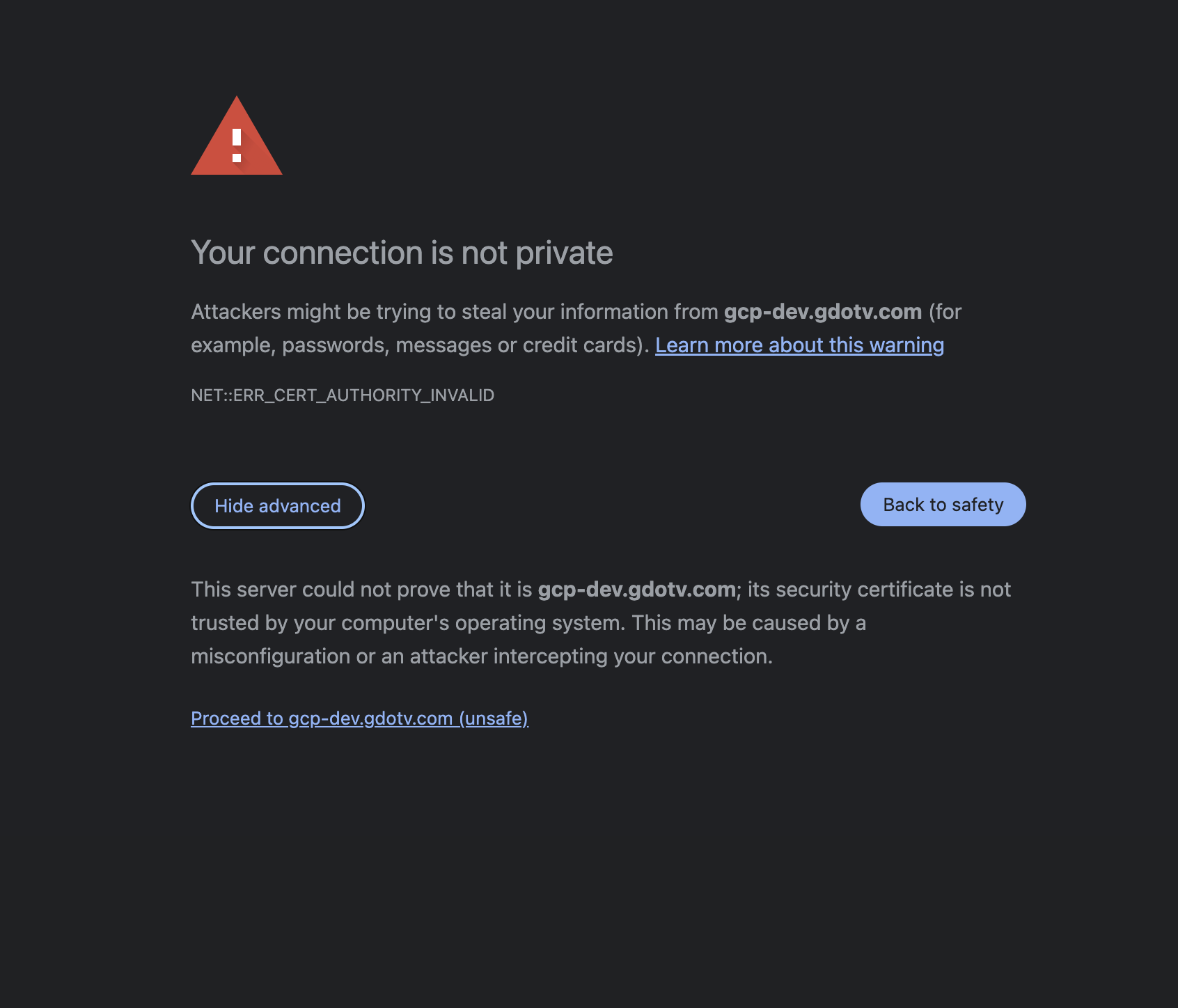
Open the AccessUrl from the stack outputs (e.g. https://<nlb-hostname>) in your browser. Since gdotv uses a self-signed TLS certificate by default, you will see a browser warning. Click Advanced, then Proceed to continue.
Authenticating to gdotv
First-time login
gdotv uses Keycloak for authentication. On first deployment, a default user is created automatically:
- Username:
gdotv - Password: Auto-generated during deployment, stored in Secrets Manager (
<stack>/gdotv-user-password)
aws secretsmanager get-secret-value \
  --secret-id gdotv/gdotv-user-password \
  --region <your-region> \
  --query SecretString --output text
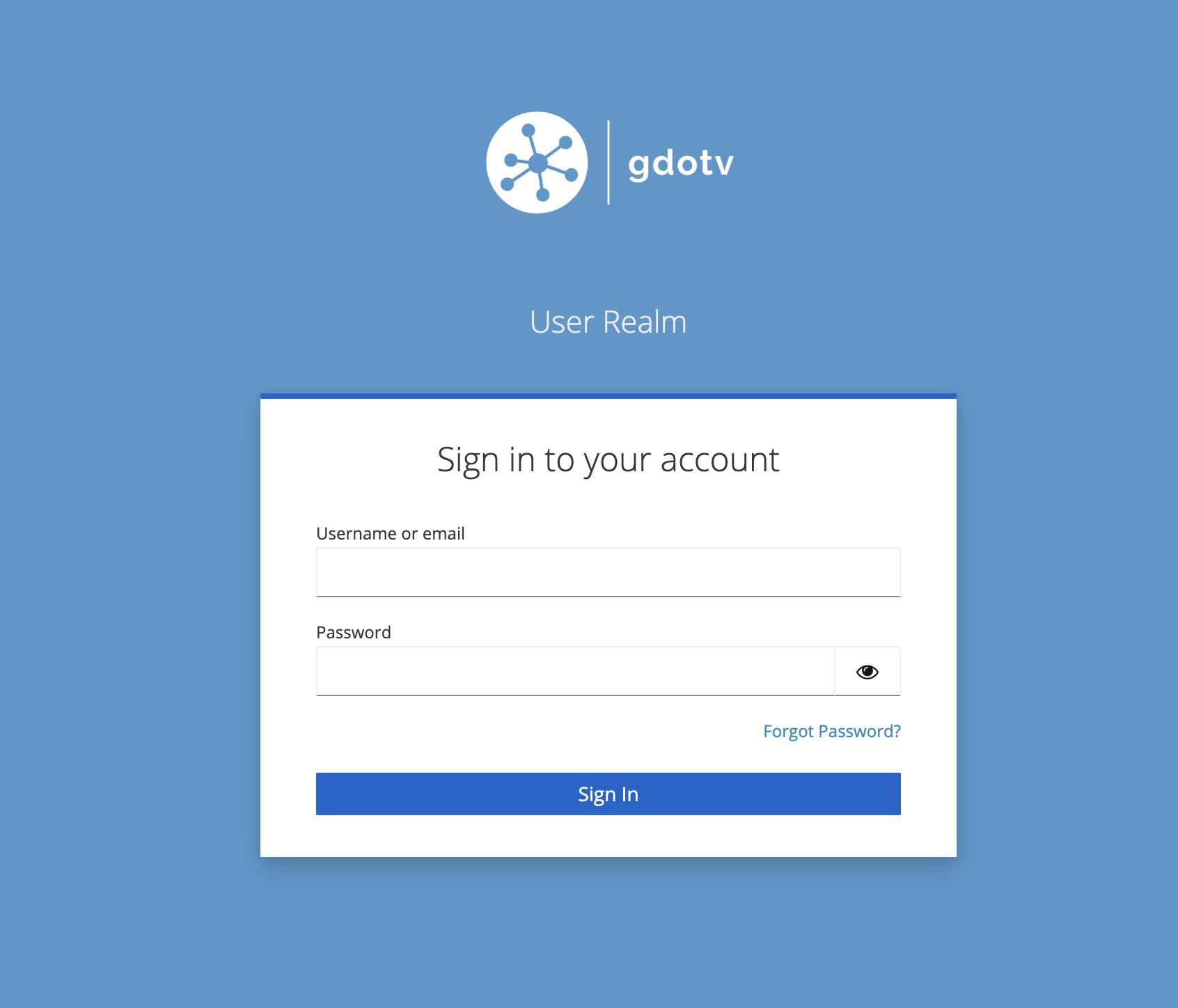
When navigating to gdotv while unauthenticated, you will be presented with the Keycloak login screen:
We recommend changing the default password after your first login. Click on the username in the top-right menu bar, then select Change Password.
Authenticating to the gdotv Keycloak realm
The gdotv Keycloak realm is where all gdotv users are stored and managed. New authentication flows, such as Single Sign On, can be configured from its admin console at:
https://<HOSTNAME>/kc/admin/gdotv/console/The default realm admin credentials are username gdotv and the same password as the default gdotv user (see above).
Authenticating to the master Keycloak realm
The master Keycloak realm provides access to the master administration interface. It should rarely need to be accessed, but we recommend logging in after initial deployment to change the master admin password. Its admin console is at:
https://<HOSTNAME>/kc/admin/master/console/Retrieve the Keycloak admin credentials (username admin):
aws secretsmanager get-secret-value \
  --secret-id gdotv/keycloak-admin-password \
  --region <your-region> \
  --query SecretString --output text
TLS and custom hostnames
By default gdotv serves its web interface over HTTPS with a self-signed certificate generated at deploy time for the instance's hostname (the NLB DNS name, or your Hostname parameter if set). Browsers will show a warning that you can safely bypass for evaluation.
Using a custom domain
- Deploy the stack (with or without the
Hostnameparameter). - Find the Network Load Balancer DNS name from the
NlbDnsNamestack output. - Create a CNAME record on your domain manager pointing your domain (e.g.
gdotv.example.com) to the NLB DNS name. - Redeploy/update the stack with
Hostname=gdotv.example.comso that gdotv, Keycloak and the generated certificate all use your domain:
aws cloudformation deploy \
  --stack-name gdotv \
  --template-url https://gdotv-cloudformation.s3.amazonaws.com/templates/gdotv-ecs-latest.yaml \
  --capabilities CAPABILITY_IAM \
  --region <your-region> \
  --parameter-overrides Hostname=gdotv.example.com
A new self-signed certificate is generated for the custom hostname on the next task start. For a publicly trusted (CA-signed) certificate against your domain, contact support@gdotv.com — or use the EKS delivery option, which supports supplying your own certificate or a Kubernetes TLS secret directly.
Security and data storage
Where your sensitive data is stored. All data stays inside the task and its encrypted EFS file system — nothing is written to an external service:
- Graph database connection configurations and the credentials you enter for them are stored in the gdotv PostgreSQL database (
gdotv-postgres), persisted on Amazon EFS. - User accounts, passwords, sessions and SSO configuration are managed by Keycloak and stored in the Keycloak PostgreSQL database (
keycloak-postgres), persisted on Amazon EFS. - Both databases run inside the task and are not exposed outside it (only port 443 is open).
Generated secrets and where they live. The stack generates a unique set of credentials per deployment, stored in AWS Secrets Manager (names prefixed with the stack name):
| Secret | Purpose |
|---|---|
<stack>/gdotv-user-password | Initial login for the default gdotv application user |
<stack>/keycloak-admin-password | Keycloak master realm administrator |
<stack>/keycloak-client-secret | OIDC client secret between gdotv and Keycloak |
<stack>/gdotv-postgres-password | gdotv database authentication |
<stack>/keycloak-postgres-password | Keycloak database authentication |
Restrict access to these secrets (and to the CloudFormation stack), and rotate the initial credentials after first login.
Data encryption
- In transit: all browser-to-application traffic is HTTPS, terminated by NGINX behind the Network Load Balancer. A self-signed certificate is generated by default; see TLS and custom hostnames.
- At rest: both PostgreSQL databases are stored on an encrypted Amazon EFS file system (
Encrypted: true), and all generated credentials are stored encrypted in AWS Secrets Manager.
Rotating credentials and certificates
- gdotv application user password — sign in to gdotv, or use the Keycloak admin console (the gdotv realm) to reset the user's password.
- Keycloak admin password — sign in to the Keycloak
masterrealm (see Authenticating to the master Keycloak realm) and update the admin user. - Database passwords — update the value in Secrets Manager and force a new task deployment so the containers pick it up (
aws ecs update-service --cluster <stack> --service <stack> --force-new-deployment). Keep the database and its secret in sync. - TLS certificate — the default self-signed certificate is regenerated for the current hostname on task start; for production use a custom domain (see TLS and custom hostnames).
Monitoring application health
# 1. The ECS service should be running one task with all containers healthy
aws ecs describe-services --cluster gdotv --services gdotv --region <region> \
  --query 'services[0].{running:runningCount,desired:desiredCount}'

# 2. The application is reachable over HTTPS at the AccessUrl from the stack outputs
curl -kIs https://<AccessUrl> | head -1   # expect HTTP/... 200, or 401/302 (auth redirect)
A healthy deployment shows the service with runningCount: 1, every container reporting HEALTHY in aws ecs describe-tasks, and the AccessUrl serving the login page. For logs and failure diagnosis, see Check logs and Troubleshooting.
Upgrading to a new version
gdotv receives frequent updates with new features and improvements. To upgrade, redeploy the stack with a new GdotvVersion:
aws cloudformation deploy \
  --stack-name gdotv \
  --template-url https://gdotv-cloudformation.s3.amazonaws.com/templates/gdotv-ecs-latest.yaml \
  --capabilities CAPABILITY_IAM \
  --region <your-region> \
  --parameter-overrides GdotvVersion=<NEW_VERSION>
CloudFormation registers a new task definition revision and ECS rolls the task. Because the PostgreSQL data lives on EFS, your data and configuration are preserved across the upgrade. Monitor the rollout in the ECS console or with aws ecs describe-services.
Backup and Restore
Recommended: AWS Backup for EFS
For production deployments, use AWS Backup to schedule backups of the EFS file system created by the stack — this captures both PostgreSQL databases. Create a backup vault and plan targeting the file system via the AWS Backup console.
Manual backup with pg_dump
You can back up the databases directly using ECS Exec. Find the running task ID first:
TASK=$(aws ecs list-tasks --cluster gdotv --region <region> \
  --query 'taskArns[0]' --output text)
Back up the gdotv application database:
aws ecs execute-command --cluster gdotv --task "$TASK" \
  --container gdotv-postgres --interactive --region <region> \
  --command "pg_dump -U postgres --clean --if-exists postgres" \
  > gdotv-backup-$(date +%Y%m%d-%H%M%S).sql
Back up the Keycloak database (it listens on port 5433):
aws ecs execute-command --cluster gdotv --task "$TASK" \
  --container keycloak-postgres --interactive --region <region> \
  --command "pg_dump -U postgres -p 5433 --clean --if-exists postgres" \
  > keycloak-backup-$(date +%Y%m%d-%H%M%S).sql
TIP
ECS Exec must be enabled on the service (enableExecuteCommand) and the task role needs the SSM messages permissions. If execute-command is not enabled on your deployment, restore from an AWS Backup recovery point instead.
Stop / Start the service
To stop gdotv without deleting it (data on EFS is preserved), scale the ECS service to zero:
aws ecs update-service --cluster gdotv --service gdotv --region <region> --desired-count 0To start it again:
aws ecs update-service --cluster gdotv --service gdotv --region <region> --desired-count 1Stopping the task stops the Fargate compute charge; the NLB and EFS continue to incur their (smaller) charges.
Check logs
All container logs go to the CloudWatch Logs group /ecs/<stack-name>, one stream per container (gdotv-developer/..., keycloak/..., gdotv-nginx/..., gdotv-postgres/..., keycloak-postgres/..., init/..., bootstrap/...).
# gdotv application — live tail
aws logs tail /ecs/gdotv --log-stream-name-prefix gdotv-developer --follow --region <region>

# Keycloak
aws logs tail /ecs/gdotv --log-stream-name-prefix keycloak --region <region>

# nginx
aws logs tail /ecs/gdotv --log-stream-name-prefix gdotv-nginx --region <region>

# init (config fetch + cert generation) and bootstrap (initial user)
aws logs tail /ecs/gdotv --log-stream-name-prefix init --region <region>
aws logs tail /ecs/gdotv --log-stream-name-prefix bootstrap --region <region>
You can also browse them in the ECS console under the task's Logs tab.
Scaling
The ECS delivery option runs the full stack in a single Fargate task and scales vertically: to give gdotv more capacity, redeploy with a larger TaskCpu / TaskMemory (see Sizing):
aws cloudformation deploy \
  --stack-name gdotv \
  --template-url https://gdotv-cloudformation.s3.amazonaws.com/templates/gdotv-ecs-latest.yaml \
  --capabilities CAPABILITY_IAM \
  --region <your-region> \
  --parameter-overrides TaskCpu=8192 TaskMemory=24576
Running multiple gdotv replicas behind the load balancer (horizontal scaling) and high-availability configurations are not supported by the single-task ECS model — the databases and Keycloak run as single instances in the task. For horizontal scaling and HA, use the EKS delivery option.
Connecting to Amazon Neptune with IAM
To connect gdotv to Amazon Neptune with IAM authentication enabled, grant the ECS task role access to Neptune. On Fargate, gdotv automatically picks up the task role's credentials — in the connection dialog, enable Use ECS Task Role Credentials and no access keys are needed.
- Find the task role created by the stack (logical id
TaskRole):
aws cloudformation describe-stack-resource \
  --stack-name gdotv \
  --logical-resource-id TaskRole \
--query 'StackResourceDetail.PhysicalResourceId' --output text- Attach an inline policy granting Neptune access. We recommend a fine-grained policy rather than
NeptuneFullAccess:
{
    "Version": "2012-10-17",
    "Statement": [
        {
            "Sid": "AllowPassRoleForNeptune",
            "Effect": "Allow",
            "Action": "iam:PassRole",
            "Resource": "*",
            "Condition": {
                "StringEquals": { "iam:passedToService": "rds.amazonaws.com" }
            }
        },
        {
            "Sid": "AllowDataAccessForNeptune",
            "Effect": "Allow",
            "Action": ["neptune-db:*", "neptune-graph:*"],
            "Resource": ["<ENTER COMMA SEPARATED LIST OF AMAZON NEPTUNE ARNs>"]
        }
    ]
}aws iam put-role-policy \
--role-name <TASK_ROLE_NAME> \
--policy-name gdotv-neptune-access \
--policy-document file://neptune-policy.json- Force a new deployment so the task picks up the updated permissions:
aws ecs update-service --cluster gdotv --service gdotv --region <region> --force-new-deploymentTIP
ARN formats:
arn:aws:rds:{region}:{account}:cluster:{cluster-name}(Amazon Neptune)arn:aws:neptune-graph:{region}:{account}:graph/{graph-id}(Amazon Neptune Analytics)
To grant access to all Neptune resources use "Resource": ["*"]; we recommend least privilege. You can optionally add CloudWatchLogsReadOnlyAccess to enable our Slow Query and Audit Logs functionality.
Uninstalling
To completely remove gdotv, delete the CloudFormation stack:
aws cloudformation delete-stack --stack-name gdotv --region <your-region>This removes the task, cluster, load balancer, VPC and EFS file system. The generated Secrets Manager secrets are scheduled for deletion with a recovery window; to remove them immediately, add --force-delete-without-recovery to aws secretsmanager delete-secret for each <stack>/... secret.
WARNING
Deleting the stack also deletes the EFS file system and therefore all gdotv and Keycloak data. Take a backup first (see Backup and Restore) if you may need it.
Troubleshooting
The application is not accessible over HTTPS
- Confirm the ECS service has a running task:
aws ecs describe-services --cluster gdotv --services gdotv --query 'services[0].runningCount' - Check each container's health in
aws ecs describe-tasks --cluster gdotv --tasks <task-arn> --query 'tasks[0].containers[].[name,healthStatus]' - Verify the Network Load Balancer target is healthy in the EC2 console (Target Groups)
The task keeps restarting / a container is unhealthy
Inspect the per-container logs in CloudWatch (see Check logs) and the task's stop reason:
aws ecs describe-tasks --cluster gdotv --tasks <task-arn> --region <region> \
  --query 'tasks[0].{stopped:stoppedReason,containers:containers[].[name,lastStatus,reason]}'
Common causes: gdotv started before Keycloak finished importing its realm (the container dependencies handle ordering, but a very slow first start can exceed the health-check window — the task self-heals on retry).
The application is stating that AWS Marketplace License Validation failed
License validation uses the ECS task role. Check that:
- You subscribed to gdotv on the Marketplace and accepted the terms.
- The task role carries the
aws-marketplace:RegisterUsageandaws-marketplace:MeterUsagepermissions (created by the stack asTaskRole). - The
gdotv-developercontainer log shows aRegisterUsage/MeterUsagecall (see Check logs).
Login fails / the gdotv user does not exist
The bootstrap container creates the initial gdotv user. Check its log:
aws logs tail /ecs/gdotv --log-stream-name-prefix bootstrap --region <region>It is idempotent and re-runs on each task start, so forcing a new deployment re-creates the user if needed.
Additional support
For any support queries, email us at support@gdotv.com. Support is free and we answer all queries within one business day.