Turning Relational Data into Graph Visualizations with PuppyGraph & gdotv

In this article, I’ll showcase a first-of-its-kind graph analytics engine that transforms and unifies your relational data stores into a highly scalable and low-latency graph. I present to you: PuppyGraph!
This is going to be a part-tutorial, part technical deep dive into this unique graph technology. By the end of this article you will have your own PuppyGraph Docker container running with a sample set of data loaded for you to explore and interact with using gdotv, or PuppyGraph’s own querying tools. Best part is, this is all free to use and will only take a few minutes to setup. Let’s go!
What Is PuppyGraph?
PuppyGraph is a deployable graph analytic engine that aggregates disparate relational data stores into a queryable graph, with zero ETL (Extract, Transform, Load) requirements. It’s plug-and-play by nature, requiring very little setup or learning: deploy it as a Docker container or AWS AMI, configure your data source and data schema, and you’ve got yourself a fully functional graph analytics engine.
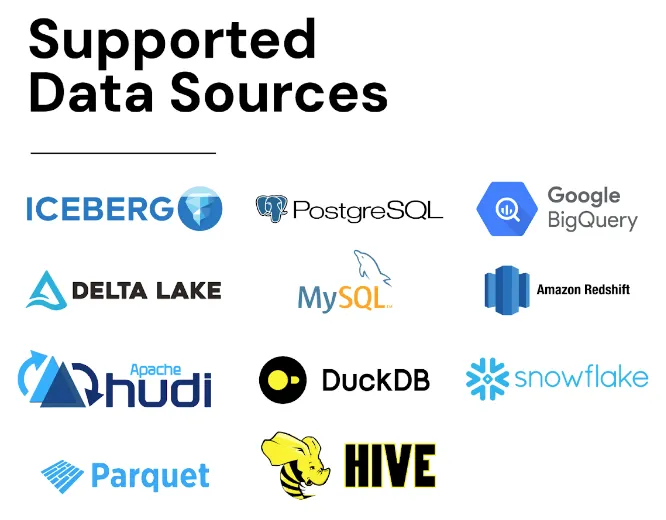
The list of supported data sources is long and growing. At time of writing, PuppyGraph supports all of the below sources:
PuppyGraph’s unique selling point is to deliver all the benefits of a traditional graph database deployments without any of the challenges:
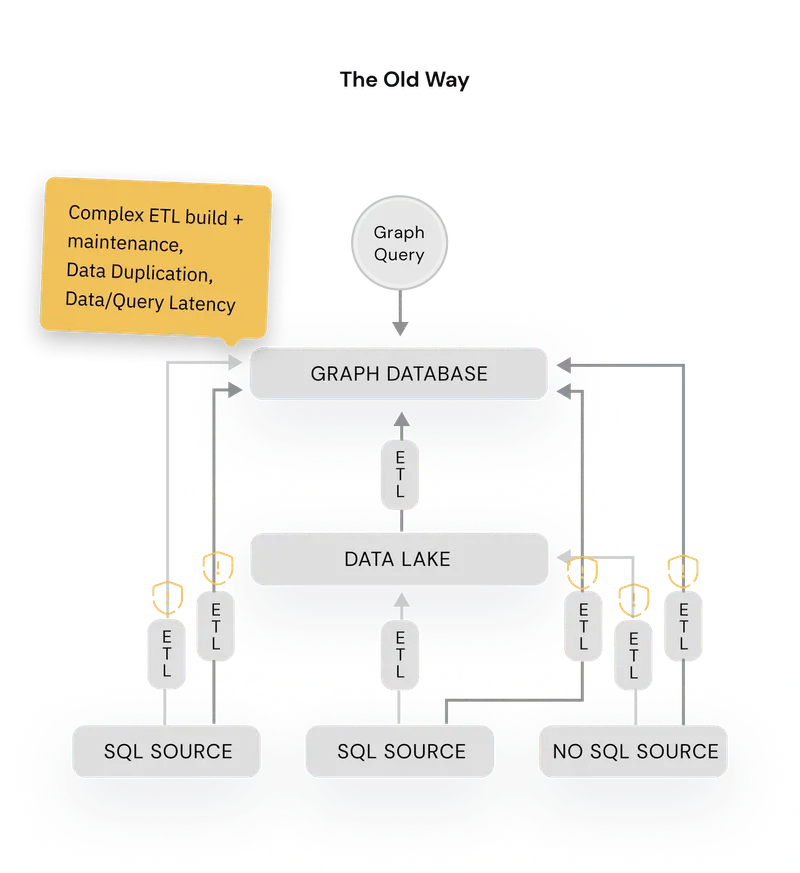
- Complex ETL: Graph databases require building time-consuming ETL pipelines with specialized knowledge, delaying data readiness and posing failure risks.
- Scaling challenges: Increasing nodes and edges complicate scaling due to higher computational demands and challenges in horizontal scaling. The interconnected nature of graph data means that adding more hardware does not always translate to linear performance improvements. In fact, it often necessitates a rethinking of the graph model or using more sophisticated scaling techniques.
- Performance difficulties: Traditional graph databases can take hours to run multi-hop queries and struggle beyond 100GB of data.
- Specialized graph-modeling knowledge requirements: Using graph databases demands a foundational understanding of mapping graph theory and logical modeling to an optimal physical data layouts or index. Given that graph databases are less commonly encountered for many engineers compared to relational databases, this lower exposure can act as a considerable barrier to implementing an optimal solution with a traditional graph database.
- Interoperability issues: Tool compatibility between graph databases and SQL is largely lacking. Existing tools for an organization’s databases may not work well with graph databases, leading to the need for new investments in tools and training for integration and usage.
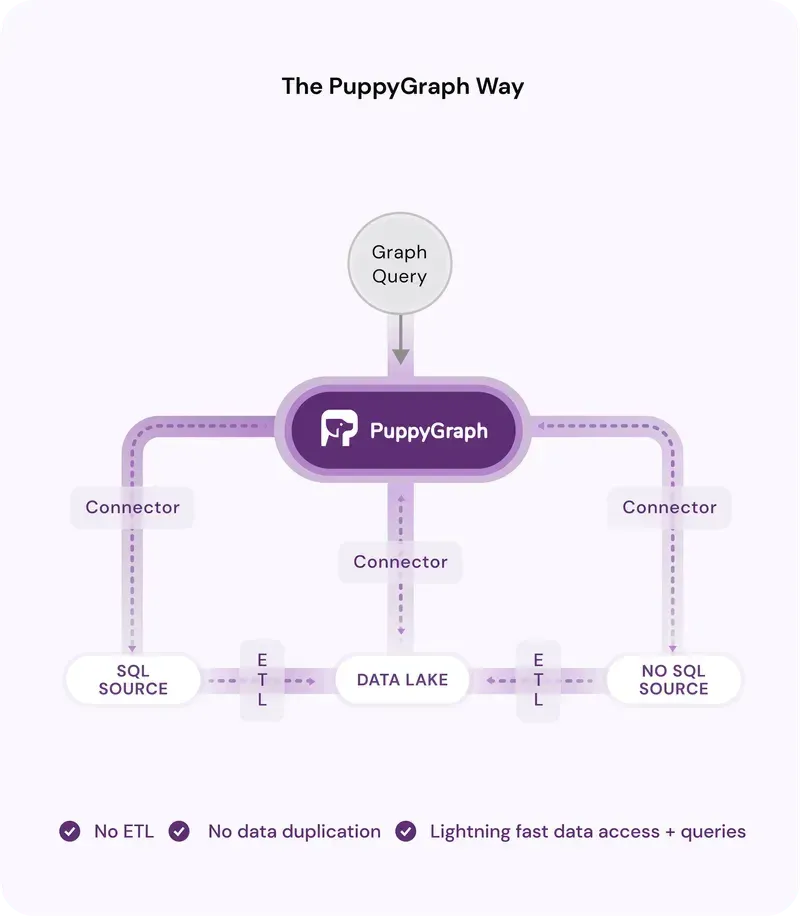
Because a picture speaks a thousand words, PuppyGraph illustrates these pain-points and how they’re solved with a simple side-by-side comparison of how you would aggregate your relational data without PuppyGraph versus using PuppyGraph, and it says it all:
Why Does PuppyGraph Exist & Why Is It More Performant Than a Traditional Graph Database?
PuppyGraph suggests that more than 90% of graph use cases involve analytics, rather than transactional workloads.
In addition, the data leveraged in these analytical use cases tend to already exist in an organization in some form of column-based storage, typically SQL. This is simply due to the fact that SQL systems are ubiquitous, thanks to their long history in the database and data warehouse markets.
With that data already in place and accessible, leveraging it directly at the source with no ETL means that you’re no longer copying the data into a graph, instead merely wrapping your data sources with a graph query engine.
Aside from the obvious zero-ETL factor, there is another considerable performance optimization being leveraged directly as part of your graph analytics. In graph, accessing a single node or edge requires loading all of their attributes in memory due to their placement on the same disk page, which leads to a higher memory consumption. By leveraging column-based storage, graph queries run by PuppyGraph can restrict their access to just the necessary attributes, which optimizes in turn the disk-access and memory storage required to evaluate a query. And therein lies the secret sauce.
Under the hood
So how does it work? You may think that PuppyGraph is merely translating your graph queries into SQL queries for the underline data sources – but it doesn’t. Instead, PuppyGraph performs all optimizations directly within its own query engine, restricting its SQL footprint to simple SELECT queries, e.g. SELECT name, age FROM person WHERE filter1 AND filter2.
You do of course need to tell PuppyGraph how to access your data sources, what tables you’re interested in accessing and what relationships between those tables are going to become the edges of your graph. This is done via a Schema configuration file, in which you’ll need to configure 3 sections:
- catalogs: This is going to be your list of data sources. A data source consists of a name, credentials, database driver class, and JDBC URI.
- vertices: This is the translation layer between your database tables and your vertices. Each vertex is mapped from a catalog, a schema and a table. Simply put, a table should map to a vertex, and its columns to vertex properties, with a name and a type. In other words, your columns ARE your vertex properties, and you can pick which ones to include as part of your vertex.
- edges: This is the translation layer that leverages the relationships of your relational data and maps them into edges. Think simple: it’s (mostly) going to be foreign keys. You can even map attributes to your edges from columns of your related tables.
To illustrate this, see below a simple schema mapping two PostgreSQL tables into two vertices and an edge:
{
  "catalogs": [
    {
      "name": "postgres_data",
      "type": "postgresql",
      "jdbc": {
        "username": "postgres",
        "password": "postgres123",
        "jdbcUri": "jdbc:postgresql://postgres:5432/postgres",
        "driverClass": "org.postgresql.Driver"
      }
    }
  ],
  "vertices": [
    {
      "label": "Location",
      "mappedTableSource": {
        "catalog": "postgres_data",
        "schema": "supply",
        "table": "locations",
        "metaFields": {
          "id": "id"
        }
      },
      "attributes": [
        {
          "name": "address",
          "type": "String"
        },
        {
          "name": "city",
          "type": "String"
        },
        {
          "name": "country",
          "type": "String"
        },
        {
          "name": "lat",
          "type": "Double"
        },
        {
          "name": "lng",
          "type": "Double"
        }
      ]
    },
    {
      "label": "Customer",
      "mappedTableSource": {
        "catalog": "postgres_data",
        "schema": "supply",
        "table": "customers",
        "metaFields": {
          "id": "id"
        }
      },
      "attributes": [
        {
          "name": "customername",
          "type": "String"
        },
        {
          "name": "city",
          "type": "String"
        }
      ]
    }
  ],
  "edges": [
    {
      "label": "CustomerLocation",
      "mappedTableSource": {
        "catalog": "postgres_data",
        "schema": "supply",
        "table": "customers",
        "metaFields": {
          "id": "id",
          "from": "id",
          "to": "location_id"
        }
      },
      "from": "Customer",
      "to": "Location"
    }
  ]
}
And there you have it! The schema file above would result in the following graph data schema below:
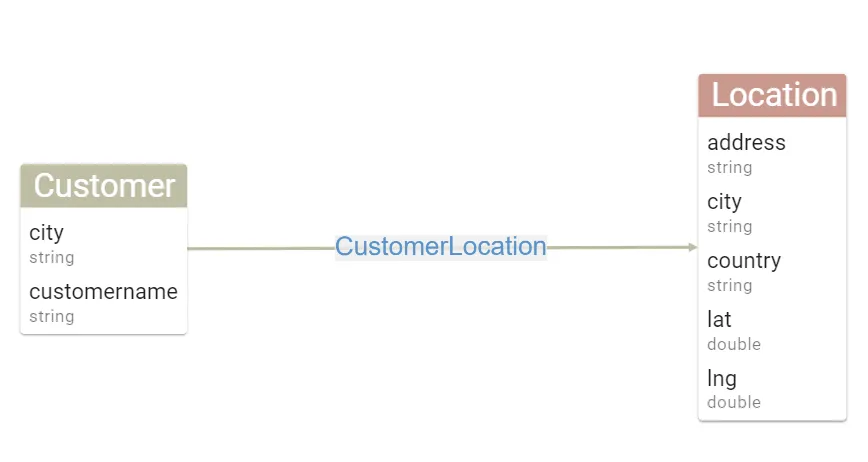
Now that we’ve covered the theory, let’s jump into practice with a step-by-step guide to create, configure, and query your first graph analytics engine using PuppyGraph and gdotv.
Setting Up Your First PuppyGraph Container
For simplicity, we’ll run a local instance of PuppyGraph together with a PostgreSQL database using Docker Compose. If you haven’t already, install Docker. Once installed, create a docker-compose.yaml file with the following contents (or download it here):
version: "3"
services:
  puppygraph:
    image: puppygraph/puppygraph:stable
    pull_policy: always
    container_name: puppygraph
    environment:
      - PUPPYGRAPH_USERNAME=puppygraph
      - PUPPYGRAPH_PASSWORD=puppygraph123
    networks:
      postgres_net:
    ports:
      - "8081:8081"
      - "8182:8182"
      - "7687:7687"
  postgres:
    image: postgres:14.1-alpine
    container_name: postgres
    environment:
      - POSTGRES_USER=postgres
      - POSTGRES_PASSWORD=postgres123
    networks:
      postgres_net:
    ports:
      - "5432:5432"
    volumes:
      - ./postgres-data:/var/lib/postgresql/data
      - ./csv_data:/tmp/csv_data:ro
      - ./postgres-schema.sql:/tmp/postgres-schema.sql
networks:
  postgres_net:
    name: puppy-postgres
You’ll also need to create a couple of folders with sample data and a Postgres Schema file to create your Postgres table. These files will be mounted to your Postgres Docker container.
Create a new postgres-schema.sql file in the same folder as your docker-compose-puppygraph.yaml file with the following contents (or download it here):
create schema supply;
create table supply.customers (id bigint, customername text, city text, state text, location_id bigint);
COPY supply.customers FROM '/tmp/csv_data/customers.csv' delimiter ',' CSV HEADER;

create table supply.distance (id bigint, from_loc_id bigint, to_loc_id bigint, distance double precision);
COPY supply.distances FROM '/tmp/csv_data/distance.csv' delimiter ',' CSV HEADER;
create table supply.factory (id bigint, factoryname text, locationid bigint);
COPY supply.factory FROM '/tmp/csv_data/factory.csv' delimiter ',' CSV HEADER;
create table supply.inventory (id bigint, productid bigint, locationid bigint, quantity bigint, lastupdated timestamp);
COPY supply.inventory FROM '/tmp/csv_data/inventory.csv' delimiter ',' CSV HEADER;
create table supply.locations (id bigint, address text, city text, country text, lat double precision, lng double precision);
COPY supply.locations FROM '/tmp/csv_data/locations.csv' delimiter ',' CSV HEADER;
create table supply.materialfactory (id bigint, material_id bigint, factory_id bigint);
COPY supply.materialfactory FROM '/tmp/csv_data/materialfactory.csv' delimiter ',' CSV HEADER;
create table supply.materialinventory (id bigint, materialid bigint, locationid bigint, quantity bigint, lastupdated timestamp);
COPY supply.materialinventory FROM '/tmp/csv_data/materialinventory.csv' delimiter ',' CSV HEADER;
create table supply.materialorders (id bigint, materialid bigint, factoryid bigint, quantity bigint, orderdate timestamp,expectedarrivaldate timestamp, status text);
COPY supply.materialorders FROM '/tmp/csv_data/materialorders.csv' delimiter ',' CSV HEADER;
create table supply.materials (id bigint, materialname text);
COPY supply.materials FROM '/tmp/csv_data/materials.csv' delimiter ',' CSV HEADER;
create table supply.productcomposition (id bigint, productid bigint, materialid bigint, quantity bigint);
COPY supply.productcomposition FROM '/tmp/csv_data/productcomposition.csv' delimiter ',' CSV HEADER;
create table supply.products (id bigint, productname text, price double precision);
COPY supply.products FROM '/tmp/csv_data/products.csv' delimiter ',' CSV HEADER;
create table supply.productsales (id bigint, productid bigint, customerid bigint, quantity bigint,saledate timestamp, totalprice double precision);
COPY supply.productsales FROM '/tmp/csv_data/productsales.csv' delimiter ',' CSV HEADER;
create table supply.productshipment (id bigint, productid bigint, fromlocationid bigint, tolocationid bigint,quantity bigint, shipmentdate timestamp, expectedarrivaldate timestamp, status text);
COPY supply.productshipment FROM '/tmp/csv_data/productshipment.csv' delimiter ',' CSV HEADER;Create a new csv_data folder, download the CSV data archive containing our sample data, and unzip it under csv_data.
You should now have the following file structure:
/csv_data
            customers.csv
            distance.csv
            factory.csv
            inventory.csv
            locations.csv
            materialfactory.csv
            materialorders.csv
            materials.csv
            productcomposition.csv
            products.csv
            productsales.csv
            productshipment.csv
docker-compose-puppygraph.yaml
postgres-schema.sql
We’re now ready to start the engine! On your command line prompt, at the folder location of your docker-compose-puppygraph.yaml file, run the following command:
docker compose -f puppygraph/docker-compose-puppygraph.yaml upGive Docker a few minutes to pull the images and create your containers, and you’ll have the following running on your device:

Loading Relational Data & Turning It into a Graph
Next, we need to load data in our PostgreSQL database and tell PuppyGraph about it. To load the data, run the following commands:
docker exec -it postgres psql -h postgres -U postgres
\i /tmp/postgres-schema.sql
Then, head on over to localhost:8081 to access the PuppyGraph console. You’ll be prompted to sign in. Enter the following credentials and click Sign In:
Username: puppygraph
Password: puppygraph123
After that, you’ll be presented with a screen with an option to upload your Graph Data Schema. Download this pre-made graph data schema configuration file here, click Choose File, then Upload. PuppyGraph will perform some checks and in just a minute you should be presented with the following on your screen:
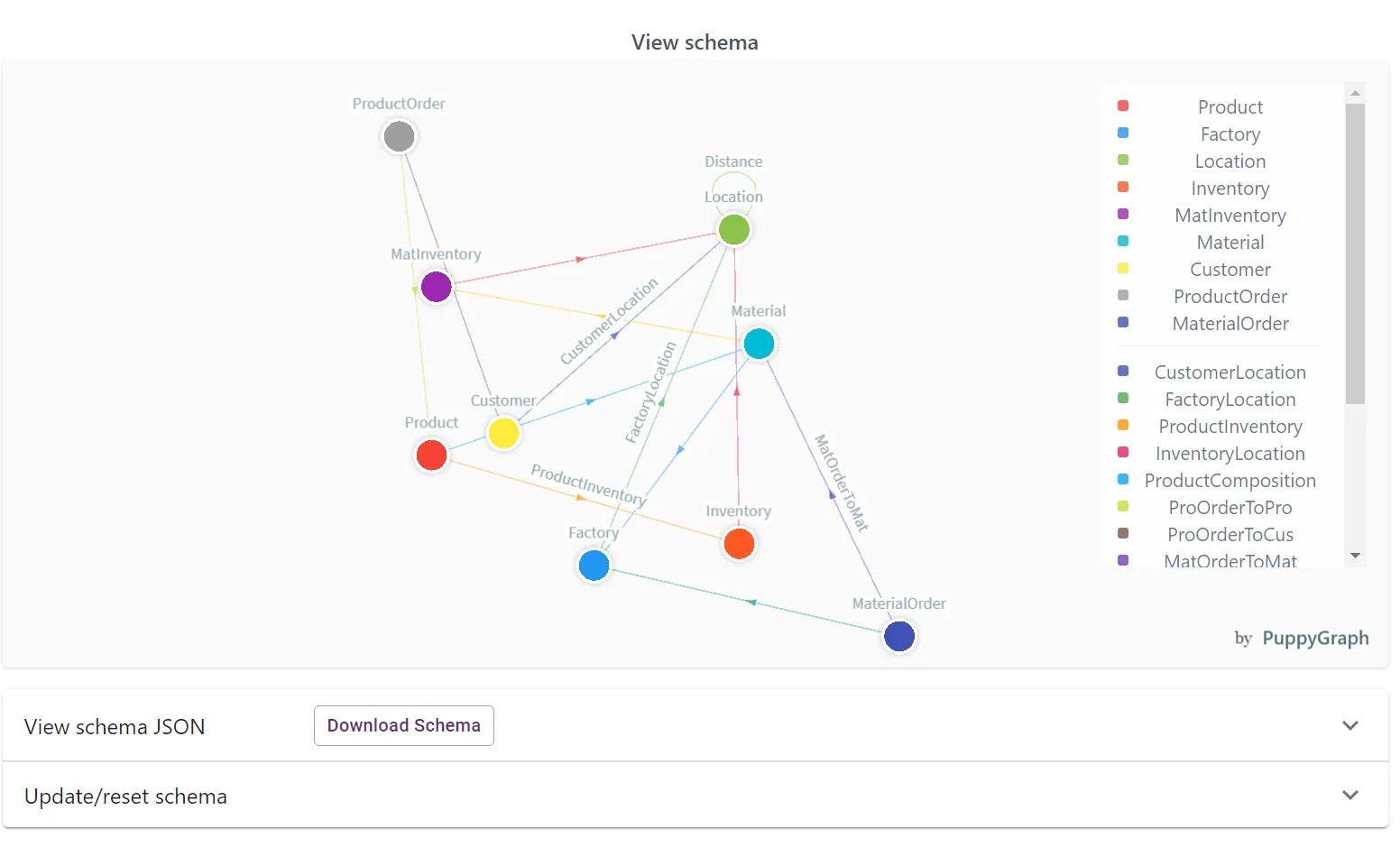
Your PuppyGraph instance is now ready to be queried with gdotv (or using PuppyGraph’s internal tooling)!
Connecting gdotv to PuppyGraph
So first off, make sure to download and install gdotv, which will only take a minute. Open gdotv and click on “New Database Connection”. Select PuppyGraph as the Graph Technology Type, and enter localhost as the Hostname/IP Address, then click on Test Connection. Next, you’ll be prompted for your PuppyGraph credentials, which are the same as earlier (puppygraph/puppygraph123). Click on Test Connection again, and you’re good to go! Click on Submit to Create the Database Connection.
You’ll be prompted to sign up for a 2-week trial – enter your details, get your validation code via email, and then you’re ready to start. If you’d rather not share your details, click on the close button for the application and you’ll be offered to get an anonymous trial instead, which will apply immediately. With that done, you’re all set!
Getting Insights from Your Shiny New PuppyGraph Instance with gdotv
With all that hard work done, we’re ready to write some cool Gremlin queries to apply the benefits of your PuppyGraph analytics engine to relational data.
You’ll first notice a query tab opened with a simple query running g.E().limit(100) and the corresponding graph visualization, as shown below:
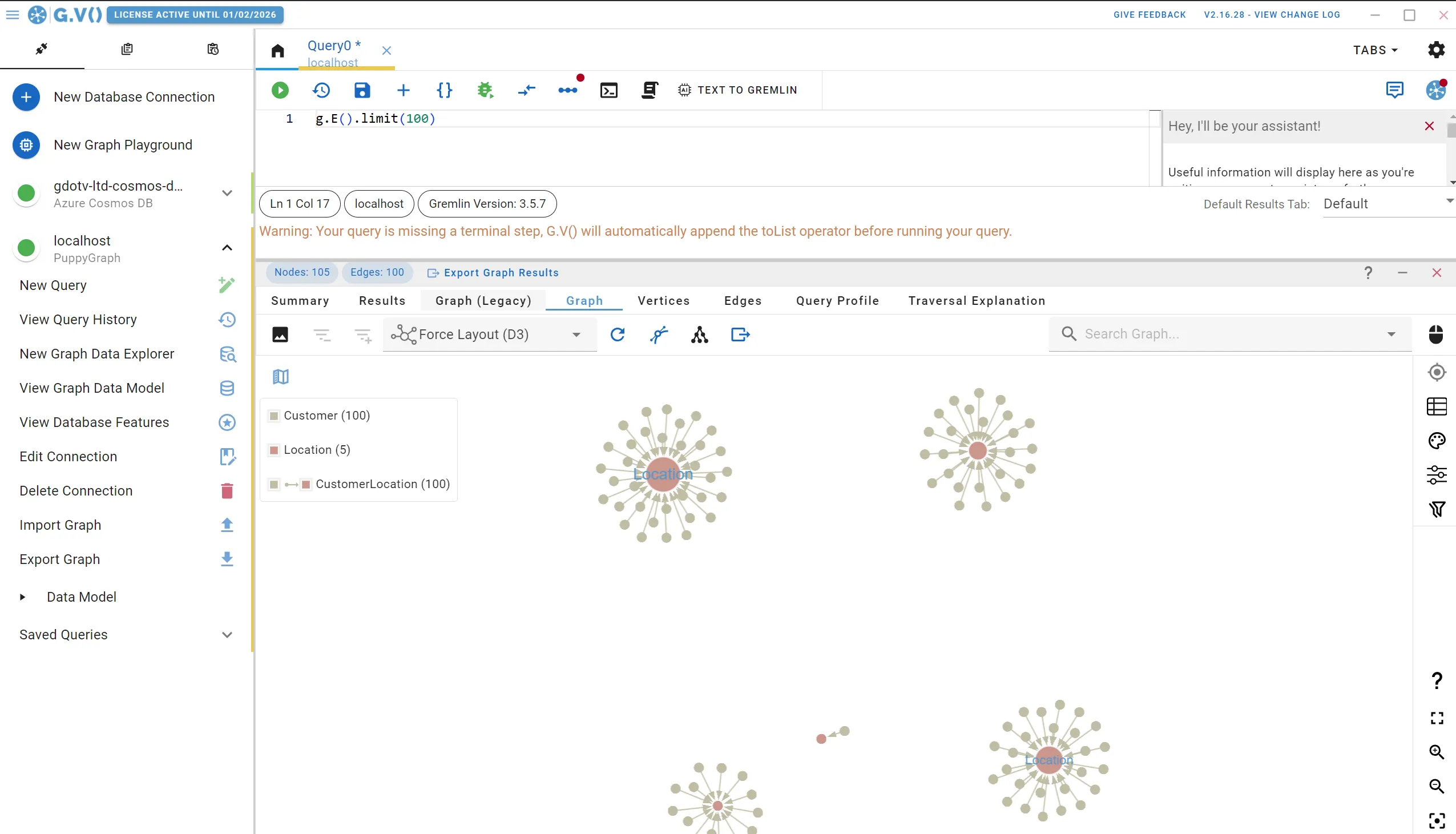
There’s a lot going on in this screen, and we’ll come back to that. For now, let’s check out the Entity-Relationship diagram gdotv has created for your PuppyGraph data schema. On the left-hand side, click on View Graph Data Model, and you’ll be presented with the following:
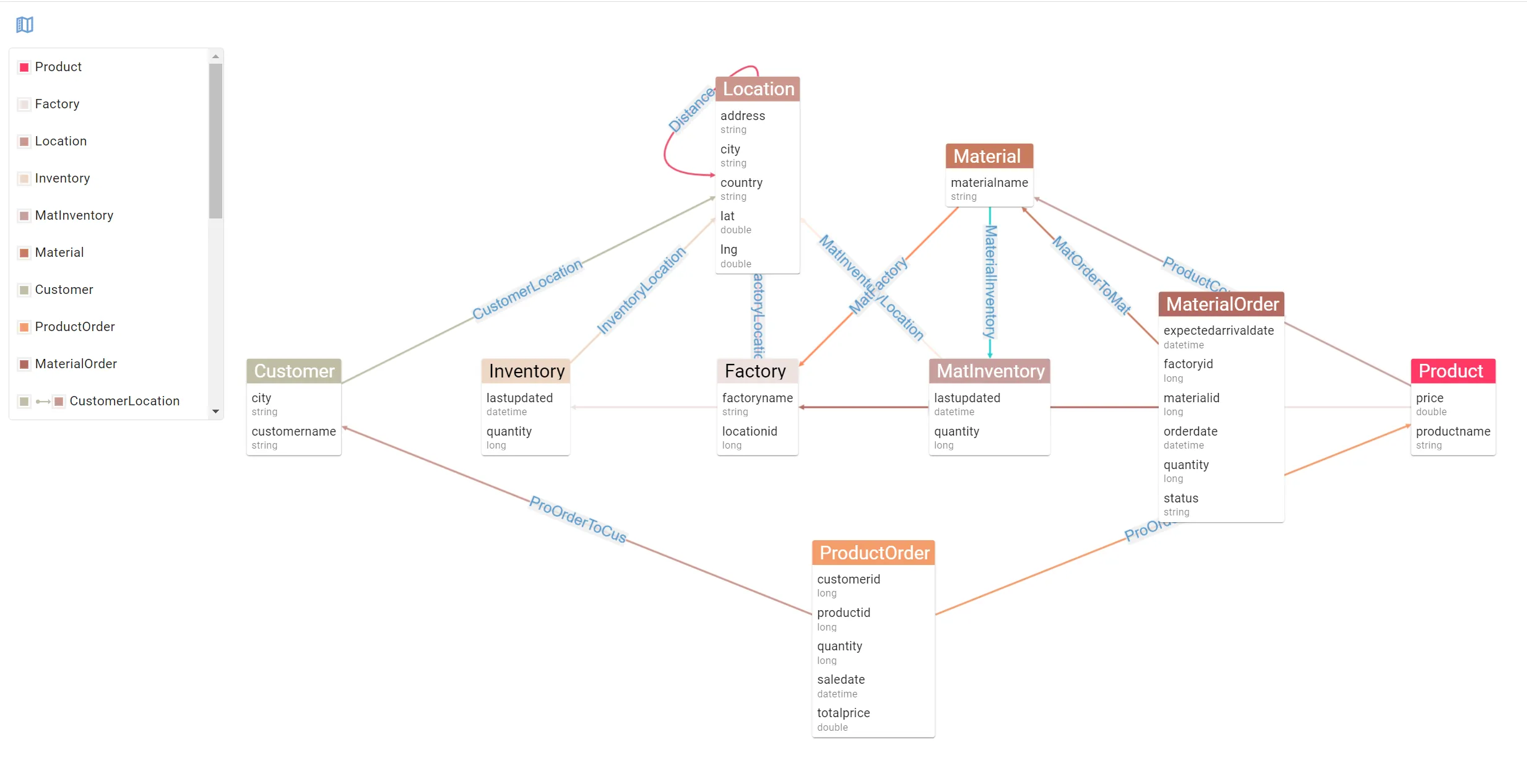
The Entity-Relationship diagram gdotv provides you is an easy way to inspect the structure of your data. This becomes especially useful when mixing multiple data sources in your PuppyGraph data schema as the resulting schema would be different from the individual data models of your data sources.
The added benefit of gdotv knowing your data schema is that gdotv can also use it to power a whole bunch of features, such as smart autocomplete suggestions when writing queries, or graph stylesheets to customize the look and feel or your displays.
What’s important here is to realize what huge benefits a graph structure brings to your relational data. Let’s take a real-life example applied to this dataset and compare how a graph query would perform against a normal SQL query. The dataset we’re using here is a supply chain use case. Unfortunately sometimes in a supply chain, a material can be faulty and lead to downstream impact to our customers.
Let’s say, as an example, that a Factory has been producing faulty materials and that we need to inform impacted customers of a product recall. To visualize how we might solve this querying problem, let’s filter down our data model to display the relevant entities and relationships we should leverage to get the right query running:
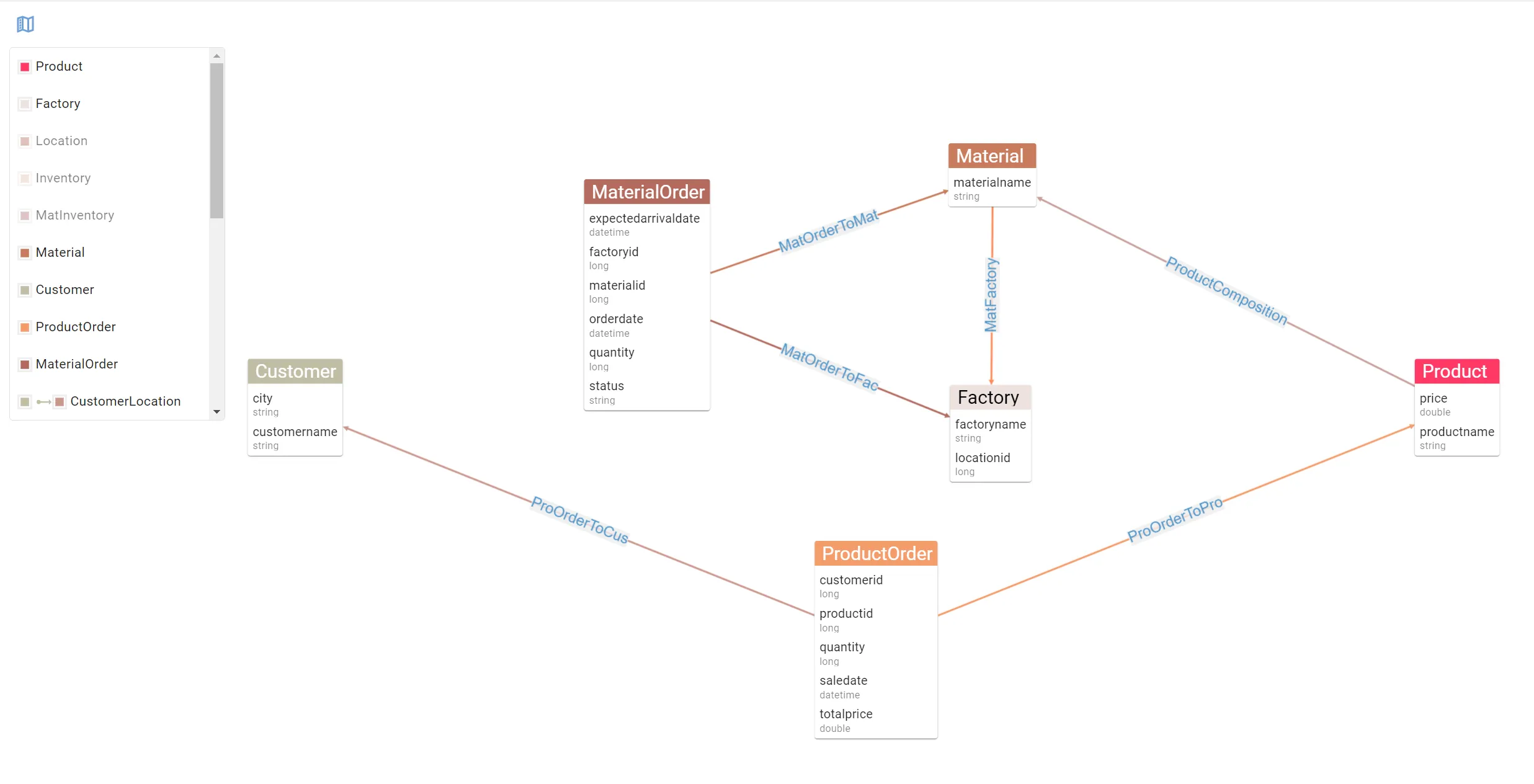
Using this view allows you to see the path from Factory to Customer. This concept of traversing a path in your data from a point A (a factory putting out faulting materials) to point B (our impacted customers) is fundamental in a graph database. Crucially, this is exactly the type of problems graph analytics engine are built to solve. In an SQL world, this would be a very convoluted query: a Factory joins to a Material which joins to a Product which joins to a ProductOrder which joins to a Customer. Yeesh.
Using the Gremlin query language, however, this becomes a much simpler query. Remember that unlike relational databases, where we select and aggregate the data to get to an answer, here we are merely traversing the data. Think of it as tracing the steps of your Materials from Factory all the way to Customer. To write your query, we’ll pick “Factory 46” as our culprit, and design our query step by step back to our customers.
In Gremlin, we pick the vertex with label “Factory” and factoryname “Factory 46”, as follows:
g.V().has("Factory", "name", "Factory 46")This is our starting point in the query, our “Point A”. Next, we simply follow the relationships displayed in our Entity-Relationship diagram leading to our unlucky Customers.
To get the materials produced by the factory, represented as the MatFactoryrelationship going out ofMaterial intoFactory, we simply add the following step to our query:
g.V().has("Factory", "name", "Factory 46".in("MatFactory")You should start seeing where this is going. Following this logic, let’s get all the way to our Customers:
g.V().has("Factory", "name", "Factory 46").in("MatFactory").in("ProductComposition").in("ProOrderToPro").out("ProOrderToCus")And there you have it! This query will return the Customer vertices that have bought products made up of materials manufactured in Factory 46. Best of all, it fits in just one line!
Let’s punch it into gdotv – this will be an opportunity to demonstrate how the gdotv query editor’s autocomplete helps you write graph queries quick and easy:
We can of course create more complex queries to answer more detailed scenarios. For instance, in our example above, we could narrow down to a single faulty material or only recall orders made at a specific date.
The Gremlin query language offers advanced filtering capabilities and a whole host of features to fit just about any querying scenario. gdotv is there to help you with the process of designing queries by offering smart suggestions, embedded Gremlin documentation, query debugging tools and a whole host of data visualization options.
If you’re interested in a more in-depth view of gdotv, check out the documentation, the gdotv blog, or other pages on the website. We also regularly post on upcoming and current developments in the software on Twitter/X and LinkedIn!
Conclusion
PuppyGraph has built an amazing solution to transform your relational data stores into a unified graph model in just minutes. It’s scalable to petabytes of data and capable of executing 10-hop queries in seconds. Their graph query engine is trusted by industry leaders such as Coinbase, Clarivate, Alchemy Pay, and Protocol Labs. If you’ve got this far, you’ve now got a working setup combining PuppyGraph and gdotv – go ahead and try it on your own data!
About the author

Arthur Bigeard
Founder & CEO
Hey! I'm Arthur Bigeard, the CEO and Founder of gdotv. I've discovered and grown a passion for graph databases in my previous jobs, which I've channeled into the making of gdotv. My mission is to create a universal, plug-and-play graph database client to simplify and accelerate the day-to-day tasks of graph data professionals.